Repository Public
1<br />23The Computer Use tool lets you build browser, mobile, and desktop control agents4that interact with and automate tasks. Using screenshots, the model can "see" a5computer screen, and "act" by generating specific UI actions like mouse clicks6and keyboard inputs. Similar to function calling, you will need to implement the7client-side execution environment to receive and execute the Computer Use8actions.910For the list of supported models, see [Model versions](https://ai.google.dev/gemini-api/docs/generate-content/computer-use#model-versions). The Gemini 3.x models support several advanced capabilities:1112- **Multi-environment support:** build agents for [browser, mobile, and desktop](https://ai.google.dev/gemini-api/docs/generate-content/computer-use#supported-environments) environments.13- **Streamlined actions with intents:** actions include an `intent` field that explains the model's reasoning behind each step.14- **Configurable safety policies:** fine-tune [safety behavior](https://ai.google.dev/gemini-api/docs/generate-content/computer-use#safety-policies) with built-in policy categories and overrides.15- **Prompt injection detection:** opt-in [screenshot scanning](https://ai.google.dev/gemini-api/docs/generate-content/computer-use#prompt-injection) to detect hidden adversarial instructions.1617With Computer Use, you can build agents that:1819- Automate repetitive data entry or form filling on websites.20- Perform automated testing of web applications and user flows21- Conduct research across various websites (e.g., gathering product information, prices, and reviews from ecommerce sites to inform a purchase)2223Here's a minimal example of enabling the Computer Use tool:2425### Python2627 from google import genai28 from google.genai import types2930 client = genai.Client()3132 response = client.models.generate_content(33 model="gemini-3.8-flash",34 contents="Search for 'Gemini API' on Google.",35 config=types.GenerateContentConfig(36 tools=[types.Tool(37 computer_use=types.ComputerUse(38 environment=types.Environment.ENVIRONMENT_BROWSER,39 )40 )]41 )42 )4344 print(response.text)4546### JavaScript4748 import { GoogleGenAI } from '@google/genai';4950 const ai = new GoogleGenAI();5152 const response = await ai.models.generateContent({53 model: 'gemini-3.8-flash',54 contents: "Search for 'Gemini API' on Google.",55 config: {56 tools: [{57 computerUse: {58 environment: "ENVIRONMENT_BROWSER",59 }60 }]61 }62 });6364 console.log(response.text);6566> [!NOTE]67> **Note:** As a Preview capability, Computer Use may contain errors and security vulnerabilities. We recommend supervising closely for important tasks, and that you avoid using the Computer Use capability for tasks involving critical decisions, sensitive data, or actions where serious errors cannot be corrected. We encourage you to review the [Safety best practices](https://ai.google.dev/gemini-api/docs/generate-content/computer-use#safety-best-practices), the [Prohibited Use68> Policy](https://policies.google.com/terms/generative-ai/use-policy) and [Gemini69> API Additional Terms of Service](https://ai.google.dev/terms).7071## How Computer Use works7273To build an agent with the Computer Use model, you need to set up a74continuous loop between your application and the API. Here is what your code75will do at each step:76771. [**Send a request to the model**](https://ai.google.dev/gemini-api/docs/generate-content/computer-use#send-request)78 - Your application sends an API request containing the Computer Use tool, your configuration settings (like the target environment), the user's prompt, and a screenshot of the current screen.792. [**Receive the model response**](https://ai.google.dev/gemini-api/docs/generate-content/computer-use#model-response)80 - The model analyzes the screen and the prompt, returning a response which includes a suggested `function_call` representing a UI action (such as a click, scroll, or keystroke).81 - For **Gemini 3.x models** , the response also includes a reasoning `intent` explaining why the model chose that action.82 - The response may also include a `safety_decision` from an internal safety system that classifies the action as regular/allowed, `require_confirmation` (requiring user approval), or blocked.833. [**Execute the received action**](https://ai.google.dev/gemini-api/docs/generate-content/computer-use#execute-actions)84 - If the action is allowed (or the user confirms it), your client-side code parses the `function_call`, scales the normalized coordinates to match your viewport, and executes the action in your target environment using automation tools (such as Playwright). If the action is blocked, your client should halt the execution or handle the interruption.854. [**Capture the new environment state**](https://ai.google.dev/gemini-api/docs/generate-content/computer-use#capture-state)86 - After the action finishes executing, your application captures a new screenshot and sends it back to the model in a `function_result` to request the next step.8788This process then repeats from step 2, continually soliciting the next action89from the model until the task is completed or terminated.9091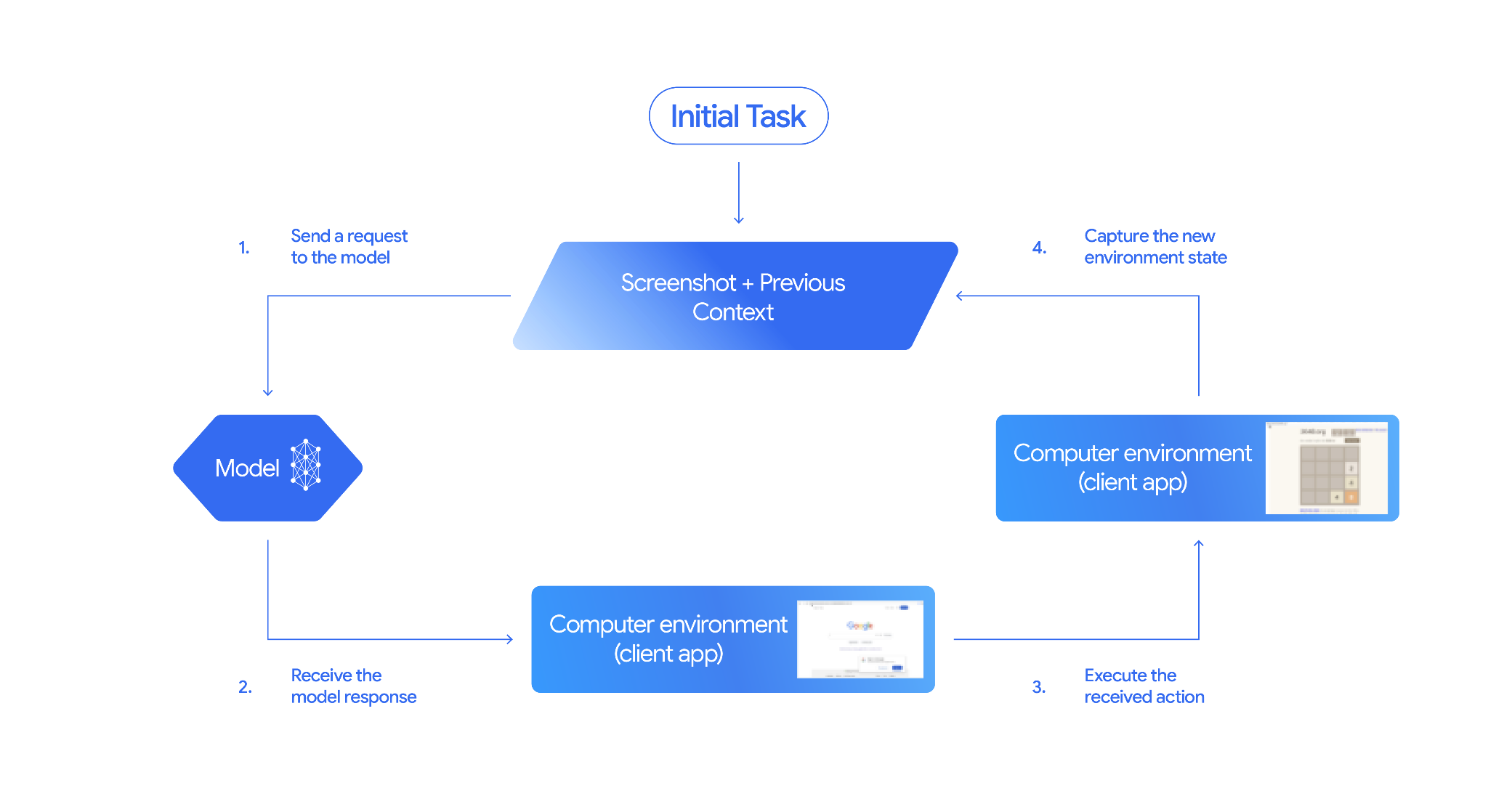9293## How to implement Computer Use9495Before building with the Computer Use tool you will need to set up:9697- **Secure execution environment:** Run your agent in a sandboxed VM or container to isolate it from your host system and limit its potential impact. The [reference implementation](https://github.com/google/computer-use-preview/) includes a ready-to-use Docker-based sandbox you can use as a starting point.98- **Client-side action handler:** Implement client-side logic to execute coordinates, type text, and take screenshots.99100The examples below use a web browser as the execution environment and101[Playwright](https://playwright.dev/) as the client-side handler.102103### 0. Set up Playwright104105First, install the required packages:106107 pip install google-genai playwright108 playwright install chromium109110Then, initialize a Playwright browser instance to use for execution:111112 from playwright.sync_api import sync_playwright113114 # 1. Configure screen dimensions for the target environment115 SCREEN_WIDTH = 1440116 SCREEN_HEIGHT = 900117118 # 2. Start the Playwright browser119 # In production, utilize a sandboxed environment.120 playwright = sync_playwright().start()121 # Set headless=False to see the actions performed on your screen122 browser = playwright.chromium.launch(headless=False)123124 # 3. Create a context and page with the specified dimensions125 context = browser.new_context(126 viewport={"width": SCREEN_WIDTH, "height": SCREEN_HEIGHT}127 )128 page = context.new_page()129130 # 4. Navigate to an initial page to start the task131 page.goto("https://www.google.com")132133 # The 'page', 'SCREEN_WIDTH', and 'SCREEN_HEIGHT' variables134 # will be used in the steps below.135136### 1. Send a request to the model137138Initialize the client library and configure the Computer Use tool. Note that there is no need to specify the display size when issuing a request; the model predicts pixel coordinates scaled to the height and width of the screen.139140### Gemini 3.x141142### Python143144Use the `google-genai` Python SDK (version `2.7.0` or higher) to configure a request targeting the browser environment:145146 from google import genai147 from google.genai.types import (148 Content,149 Part,150 GenerateContentConfig,151 Tool,152 ComputerUse,153 Environment,154 ThinkingConfig,155 )156157 client = genai.Client()158159 response = client.models.generate_content(160 model="gemini-3.8-flash",161 contents=[162 Content(163 role="user",164 parts=[165 Part(text="Find a flight from SF to Hawaii on Jun 30th, coming back on Jul 6th"),166 ],167 )168 ],169 config=GenerateContentConfig(170 tools=[171 Tool(172 computer_use=ComputerUse(173 environment=Environment.ENVIRONMENT_BROWSER,174 enable_prompt_injection_detection=True,175 ),176 ),177 ],178 thinking_config=ThinkingConfig(179 include_thoughts=True180 ),181 )182 )183184 print(response.text)185186### JavaScript187188Use the `@google/genai` Node.js SDK to configure a request targeting the browser environment:189190 import { GoogleGenAI } from '@google/genai';191192 const ai = new GoogleGenAI();193194 const response = await ai.models.generateContent({195 model: 'gemini-3.8-flash',196 contents: [197 {198 role: 'user',199 parts: [{ text: "Find a flight from SF to Hawaii on Jun 30th, coming back on Jul 6th" }]200 }201 ],202 config: {203 tools: [{204 computerUse: {205 environment: "ENVIRONMENT_BROWSER",206 enable_prompt_injection_detection: true207 }208 }],209 thinkingConfig: {210 includeThoughts: true211 }212 }213 });214215 console.log(response.text);216217### REST218219Use curl to send a request:220221 curl -X POST \222 "https://generativelanguage.googleapis.com/v1beta/models/gemini-3.8-flash:generateContent?key=$GEMINI_API_KEY" \223 -H "Content-Type: application/json" \224 -d '{225 "contents": [226 {227 "role": "user",228 "parts": {229 "text": "Find me a flight from SF to Hawaii on Jun 30th, coming back on Jul 6th. Start by navigating directly to flights.google.com"230 }231 }232 ],233 "tools": [234 {235 "computer_use": {236 "environment": "ENVIRONMENT_BROWSER",237 "enable_prompt_injection_detection": true238 }239 }240 ]241 }'242243### Gemini 2.5 (Legacy)244245### Python246247 from google import genai248 from google.genai import types249 from google.genai.types import Content, Part250251 client = genai.Client()252253 # Specify predefined functions to exclude (optional)254 excluded_functions = ["drag_and_drop"]255256 generate_content_config = genai.types.GenerateContentConfig(257 tools=[258 types.Tool(259 computer_use=types.ComputerUse(260 environment=types.Environment.ENVIRONMENT_BROWSER,261 excluded_predefined_functions=excluded_functions262 )263 ),264 ],265 )266267 contents=[268 Content(269 role="user",270 parts=[271 Part(text="Search for highly rated smart fridges on Google Shopping."),272 ],273 )274 ]275276 response = client.models.generate_content(277 model='gemini-2.5-computer-use-preview-10-2025',278 contents=contents,279 config=generate_content_config,280 )281282 print(response)283284### JavaScript285286 import { GoogleGenAI } from '@google/genai';287288 const ai = new GoogleGenAI();289290 // Specify predefined functions to exclude (optional)291 const excludedFunctions = ["drag_and_drop"];292293 const response = await ai.models.generateContent({294 model: 'gemini-2.5-computer-use-preview-10-2025',295 contents: [296 {297 role: 'user',298 parts: [{ text: "Search for highly rated smart fridges on Google Shopping." }]299 }300 ],301 config: {302 tools: [{303 computerUse: {304 environment: "ENVIRONMENT_BROWSER",305 excluded_predefined_functions: excludedFunctions306 }307 }]308 }309 });310311 console.log(response);312313### 2. Receive the model response314315The response model suggests a function call. For **Gemini 3.x models**, the316response contains a tailored reasoning intent alongside coordinates. The317following shows examples of both responses:318319### Gemini 3.x320321 {322 "function_call": {323 "name": "click",324 "args": {325 "x": 450,326 "y": 120,327 "intent": "Click the search box to type the destination."328 }329 }330 }331332### Gemini 2.5 (Legacy)333334 {335 "content": {336 "parts": [337 {338 "text": "I will type the search query into the search bar."339 },340 {341 "function_call": {342 "name": "type_text_at",343 "args": {344 "x": 371,345 "y": 470,346 "text": "highly rated smart fridges",347 "press_enter": true348 }349 }350 }351 ]352 }353 }354355### 3. Execute the received actions356357Your application code needs to parse the model response, execute the actions,358and collect the results.359360The code below handles both legacy tool commands (`click_at`, `type_text_at`) and modern streamlined commands (`click`, `type`).361362### Python363364 from typing import Any, List, Tuple365 import time366367 def denormalize_x(x: int, screen_width: int) -> int:368 """Convert normalized x coordinate (0-1000) to actual pixel coordinate."""369 return int(x / 1000 * screen_width)370371 def denormalize_y(y: int, screen_height: int) -> int:372 """Convert normalized y coordinate (0-1000) to actual pixel coordinate."""373 return int(y / 1000 * screen_height)374375 def execute_function_calls(interaction, page, screen_width, screen_height):376 results = []377 function_calls = []378379 # Parse content parts (Handling legacy and Gemini 3 response structures)380 parts = candidate.content.parts if hasattr(candidate, 'content') else []381 if not parts and hasattr(candidate, 'function_calls'):382 function_calls = candidate.function_calls383 else:384 for part in parts:385 if part.function_call:386 function_calls.append(part.function_call)387388 for function_call in function_calls:389 action_result = {}390 fname = function_call.name391 args = function_call.args392 print(f" -> Executing: {fname} (Intent: {args.get('intent', 'N/A')})")393394 try:395 if fname in ("open_web_browser", "open_app"):396 pass # Handled / already open397 elif fname in ("click", "click_at", "double_click", "triple_click", "middle_click", "right_click", "move", "long_press"):398 actual_x = denormalize_x(args["x"], screen_width)399 actual_y = denormalize_y(args["y"], screen_height)400401 if fname in ("click", "click_at"):402 page.mouse.click(actual_x, actual_y)403 elif fname == "double_click":404 page.mouse.dblclick(actual_x, actual_y)405 elif fname == "right_click":406 page.mouse.click(actual_x, actual_y, button="right")407 elif fname == "middle_click":408 page.mouse.click(actual_x, actual_y, button="middle")409 elif fname == "move":410 page.mouse.move(actual_x, actual_y)411 elif fname in ("type", "type_text_at"):412 actual_x = denormalize_x(args["x"], screen_width) if "x" in args else None413 actual_y = denormalize_y(args["y"], screen_height) if "y" in args else None414 text = args["text"]415 press_enter = args.get("press_enter", False)416417 if actual_x is not None and actual_y is not None:418 page.mouse.click(actual_x, actual_y)419 # Clear field first420 page.keyboard.press("Meta+A")421 page.keyboard.press("Backspace")422 page.keyboard.type(text)423 if press_enter:424 page.keyboard.press("Enter")425 elif fname == "navigate":426 page.goto(args["url"])427 elif fname == "go_back":428 page.go_back()429 elif fname == "go_forward":430 page.go_forward()431 elif fname == "wait":432 time.sleep(args.get("seconds", 1))433 else:434 print(f"Warning: Custom or unhandled function {fname}")435436 page.wait_for_load_state(timeout=5000)437 time.sleep(1)438439 except Exception as e:440 print(f"Error executing {fname}: {e}")441 action_result = {"error": str(e)}442443 results.append((fname, function_call.id, action_result))444445 return results446447### JavaScript448449 function denormalizeX(x, screenWidth) {450 // Convert normalized x coordinate (0-1000) to actual pixel coordinate.451 return Math.floor((x / 1000) * screenWidth);452 }453454 function denormalizeY(y, screenHeight) {455 // Convert normalized y coordinate (0-1000) to actual pixel coordinate.456 return Math.floor((y / 1000) * screenHeight);457 }458459 async function executeFunctionCalls(candidate, page, screenWidth, screenHeight) {460 const results = [];461 let functionCalls = [];462463 // Parse function calls from candidate response464 const parts = candidate.content?.parts || [];465 if (parts.length === 0 && candidate.functionCalls) {466 functionCalls = candidate.functionCalls;467 } else {468 for (const part of parts) {469 if (part.functionCall) {470 functionCalls.push(part.functionCall);471 }472 }473 }474475 for (const functionCall of functionCalls) {476 const actionResult = {};477 const fname = functionCall.name;478 const args = functionCall.args;479 console.log(` -> Executing: ${fname} (Intent: ${args.intent || 'N/A'})`);480481 try {482 if (fname === "open_web_browser" || fname === "open_app") {483 // Handled / already open484 } else if (["click", "click_at", "double_click", "triple_click", "middle_click", "right_click", "move", "long_press"].includes(fname)) {485 const actualX = denormalizeX(args.x, screenWidth);486 const actualY = denormalizeY(args.y, screenHeight);487488 if (fname === "click" || fname === "click_at") {489 await page.mouse.click(actualX, actualY);490 } else if (fname === "double_click") {491 await page.mouse.dblclick(actualX, actualY);492 } else if (fname === "right_click") {493 await page.mouse.click(actualX, actualY, { button: "right" });494 } else if (fname === "middle_click") {495 await page.mouse.click(actualX, actualY, { button: "middle" });496 } else if (fname === "move") {497 await page.mouse.move(actualX, actualY);498 }499 } else if (fname === "type" || fname === "type_text_at") {500 const actualX = args.x !== undefined ? denormalizeX(args.x, screenWidth) : null;501 const actualY = args.y !== undefined ? denormalizeY(args.y, screenHeight) : null;502 const text = args.text;503 const pressEnter = args.press_enter || false;504505 if (actualX !== null && actualY !== null) {506 await page.mouse.click(actualX, actualY);507 }508 // Clear field first509 await page.keyboard.press("Meta+A");510 await page.keyboard.press("Backspace");511 await page.keyboard.type(text);512 if (pressEnter) {513 await page.keyboard.press("Enter");514 }515 } else if (fname === "navigate") {516 await page.goto(args.url);517 } else if (fname === "go_back") {518 await page.goBack();519 } else if (fname === "go_forward") {520 await page.goForward();521 } else if (fname === "wait") {522 await new Promise(resolve => setTimeout(resolve, (args.seconds || 1) * 1000));523 } else {524 console.log(`Warning: Custom or unhandled function ${fname}`);525 }526527 await page.waitForLoadState('load', { timeout: 5000 }).catch(() => {});528 await new Promise(resolve => setTimeout(resolve, 1000));529 } catch (e) {530 console.log(`Error executing ${fname}: ${e}`);531 actionResult.error = e.message;532 }533534 results.push([fname, functionCall.id, actionResult]);535 }536537 return results;538 }539540### 4. Capture the new environment state541542Capture a screen representation and return it to the model.543544### Python545546 def get_function_responses(page, results):547 screenshot_bytes = page.screenshot(type="png")548 current_url = page.url549 function_responses = []550 for name, call_id, result in results:551 function_responses.append({552 "type": "function_result",553 "name": name,554 "call_id": call_id,555 "result": [556 {557 "type": "text",558 "text": json.dumps({"url": current_url, **result})559 },560 {561 "type": "image",562 "data": base64.b64encode(screenshot_bytes).decode("utf-8"),563 "mime_type": "image/png"564 }565 ]566 })567 return function_responses568569### JavaScript570571 async function getFunctionResponses(page, results) {572 const screenshotBuffer = await page.screenshot({ type: 'png' });573 const screenshotBase64 = screenshotBuffer.toString('base64');574 const currentUrl = page.url();575 const functionResponses = [];576577 for (const [name, callId, result] of results) {578 functionResponses.push({579 type: "function_result",580 name: name,581 call_id: callId,582 result: [583 {584 type: "text",585 text: JSON.stringify({ url: currentUrl, ...result })586 },587 {588 type: "image",589 data: screenshotBase64,590 mime_type: "image/png"591 }592 ]593 });594 }595 return functionResponses;596 }597598Once you have defined how to capture and format the environment state, you can combine all these steps into a continuous execution loop.599600## Build an agent loop601602To enable multi-step interactions, combine the four steps from the [How to implement Computer Use](https://ai.google.dev/gemini-api/docs/generate-content/computer-use#implement-computer-use) section into a single loop. This loop continues requesting actions and feeding the results back to the model until the task is complete.603604Remember to manage the conversation history correctly by appending both the model responses and your function responses to the history at each step.605606### Python607608 import time609 from typing import Any, List, Tuple610 from playwright.sync_api import sync_playwright611 from google import genai612 from google.genai import types613614 client = genai.Client()615616 SCREEN_WIDTH = 1440617 SCREEN_HEIGHT = 900618619 print("Initializing browser...")620 playwright = sync_playwright().start()621 browser = playwright.chromium.launch(headless=False)622 context = browser.new_context(viewport={"width": SCREEN_WIDTH, "height": SCREEN_HEIGHT})623 page = context.new_page()624625 # Paste helper functions execute_function_calls and get_function_responses here626627 try:628 page.goto("https://ai.google.dev/gemini-api/docs")629630 config = types.GenerateContentConfig(631 tools=[types.Tool(computer_use=types.ComputerUse(632 environment=types.Environment.ENVIRONMENT_BROWSER,633 enable_prompt_injection_detection=True634 ))],635 thinking_config=types.ThinkingConfig(include_thoughts=True),636 )637638 initial_screenshot = page.screenshot(type="png")639 USER_PROMPT = "Go to ai.google.dev/gemini-api/docs and search for pricing."640 print(f"Goal: {USER_PROMPT}")641642 contents = [643 types.Content(role="user", parts=[644 types.Part(text=USER_PROMPT),645 types.Part.from_bytes(data=initial_screenshot, mime_type='image/png')646 ])647 ]648649 # Agent Loop650 turn_limit = 5651 for i in range(turn_limit):652 print(f"\n--- Turn {i+1} ---")653 print("Thinking...")654 response = client.models.generate_content(655 model='gemini-3.8-flash',656 contents=contents,657 config=config,658 )659660 candidate = response.candidates[0]661 contents.append(candidate.content)662663 has_function_calls = any(part.function_call for part in candidate.content.parts)664 if not has_function_calls:665 text_response = " ".join(666 part.text for part in candidate.content.parts if hasattr(part, 'text')667 )668 print("Agent finished:", text_response)669 break670671 print("Executing actions...")672 results = execute_function_calls(candidate, page, SCREEN_WIDTH, SCREEN_HEIGHT)673674 print("Capturing state...")675 function_responses = get_function_responses(page, results)676677 contents.append(678 types.Content(role="user", parts=[types.Part(function_response=fr) for fr in function_responses])679 )680681 finally:682 print("Closing browser...")683 browser.close()684 playwright.stop()685686### JavaScript687688 import { chromium } from 'playwright';689 import { GoogleGenAI } from '@google/genai';690691 const ai = new GoogleGenAI();692693 // Constants for screen dimensions694 const SCREEN_WIDTH = 1440;695 const SCREEN_HEIGHT = 900;696697 console.log("Initializing browser...");698 const browser = await chromium.launch({ headless: false });699 const context = await browser.newContext({700 viewport: { width: SCREEN_WIDTH, height: SCREEN_HEIGHT }701 });702 const page = await context.newPage();703704 // Define helper functions. Copy/paste from steps 3 and 4:705 // function denormalizeX(...)706 // function denormalizeY(...)707 // async function executeFunctionCalls(...)708 // async function getFunctionResponses(...)709710 try {711 await page.goto("https://ai.google.dev/gemini-api/docs");712713 const config = {714 tools: [{715 computerUse: {716 environment: "ENVIRONMENT_BROWSER",717 enable_prompt_injection_detection: true718 }719 }],720 thinkingConfig: { includeThoughts: true }721 };722723 const initialScreenshotBuffer = await page.screenshot({ type: 'png' });724 const initialScreenshotBase64 = initialScreenshotBuffer.toString('base64');725 const USER_PROMPT = "Go to ai.google.dev/gemini-api/docs and search for pricing.";726 console.log(`Goal: ${USER_PROMPT}`);727728 const contents = [729 {730 role: "user",731 parts: [732 { text: USER_PROMPT },733 {734 inlineData: {735 data: initialScreenshotBase64,736 mimeType: "image/png"737 }738 }739 ]740 }741 ];742743 // Agent Loop744 const turnLimit = 5;745 for (let i = 0; i < turnLimit; i++) {746 console.log(`\n--- Turn ${i + 1} ---`);747 console.log("Thinking...");748 const response = await ai.models.generateContent({749 model: 'gemini-3.8-flash',750 contents: contents,751 config: config752 });753754 const candidate = response.candidates[0];755 contents.push(candidate.content);756757 const hasFunctionCalls = candidate.content.parts.some(part => part.functionCall);758 if (!hasFunctionCalls) {759 const textResponse = candidate.content.parts760 .filter(part => part.text)761 .map(part => part.text)762 .join(" ");763 console.log("Agent finished:", textResponse);764 break;765 }766767 console.log("Executing actions...");768 const results = await executeFunctionCalls(candidate, page, SCREEN_WIDTH, SCREEN_HEIGHT);769770 console.log("Capturing state...");771 const functionResponses = await getFunctionResponses(page, results);772773 contents.push({774 role: "user",775 parts: functionResponses.map(fr => ({776 ...fr777 }))778 });779 }780 } finally {781 console.log("Closing browser...");782 await browser.close();783 }784785## Supported environments (Gemini 3.x)786787Gemini 3.x models support three environments specified in the `computer_use` configurations:788789### Browser environment (`ENVIRONMENT_BROWSER`)790791Action actions under browser tool:792793| Command name | Description | Arguments (in function call) |794|---|---|---|795| **click** | Left clicks at the coordinate. | `y`: int (0-999) `x`: int (0-999) `intent`: str |796| **double_click** | Double clicks at the coordinate. | `y`: int (0-999) `x`: int (0-999) `intent`: str |797| **triple_click** | Triple clicks at the coordinate. | `y`: int (0-999) `x`: int (0-999) `intent`: str |798| **middle_click** | Middle clicks at the coordinate. | `y`: int (0-999) `x`: int (0-999) `intent`: str |799| **right_click** | Right clicks at the coordinate. | `y`: int (0-999) `x`: int (0-999) `intent`: str |800| **mouse_down** | Presses and holds the mouse button at the coordinate. | `y`: int (0-999) `x`: int (0-999) `intent`: str |801| **mouse_up** | Releases the mouse button at the coordinate. | `y`: int (0-999) `x`: int (0-999) `intent`: str |802| **move** | Moves the cursor to the specified position. | `y`: int (0-999) `x`: int (0-999) `intent`: str |803| **type** | Types text. | `text`: str `press_enter`: bool (Optional, default `false`) `intent`: str |804| **drag_and_drop** | Drags an item from the start coordinate to the end coordinate. | `start_y`: int (0-999) `start_x`: int (0-999) `end_y`: int (0-999) `end_x`: int (0-999) `intent`: str |805| **wait** | Pauses execution for a specified number of seconds. | `seconds`: int (Optional, default `1`) `intent`: str |806| **press_key** | Presses the specified key and releases it. | `key`: str `intent`: str |807| **key_down** | Presses and holds the specified key. | `key`: str `intent`: str |808| **key_up** | Releases the specified key. | `key`: str `intent`: str |809| **hotkey** | Presses the specified key combination. | `keys`: `List[str]` `intent`: `str` |810| **take_screenshot** | Returns a screenshot of the current screen. | `intent`: str |811| **scroll** | Scrolls up, down, left, or right at a coordinate by a pixel distance. | `y`: int (0-999) `x`: int (0-999) `direction`: str (`"up"`, `"down"`, `"left"`, `"right"`) `magnitude_in_pixels`: int (0-999, Optional, default `300`) `intent`: str |812| **go_back** | Navigates back to the previous webpage in the browser history. | `intent`: str |813| **navigate** | Navigates directly to a specified URL. | `url`: str `intent`: str |814| **go_forward** | Navigates forward to the next webpage in the browser history. | `intent`: str |815816### Mobile environment (`ENVIRONMENT_MOBILE`)817818Android-optimized environment actions:819820| Command name | Description | Arguments (in function call) |821|---|---|---|822| **open_app** | Opens an application by its name. | `app_name`: str `intent`: str |823| **click** | Left clicks at the coordinate. | `y`: int (0-999) `x`: int (0-999) `intent`: str |824| **list_apps** | Lists available applications on the device, returning their names and package names. | `intent`: str |825| **wait** | Pauses execution for a specified number of seconds. | `seconds`: int (Optional, default `1`) `intent`: str |826| **go_back** | Navigates back to the previous screen or webpage. | `intent`: str |827| **type** | Types text. | `text`: str `press_enter`: bool (Optional, default `false`) `intent`: str |828| **drag_and_drop** | Drags an item from the start coordinate to the end coordinate. | `start_y`: int (0-999) `start_x`: int (0-999) `end_y`: int (0-999) `end_x`: int (0-999) `intent`: str |829| **long_press** | Performs a long press at a coordinate on the screen. | `y`: int (0-999) `x`: int (0-999) `seconds`: int (Optional, default `2`) `intent`: str |830| **press_key** | Presses the specified key and releases it. | `key`: str `intent`: str |831| **take_screenshot** | Returns a screenshot of the current screen. | `intent`: str |832833### Desktop environment (`ENVIRONMENT_DESKTOP`)834835Desktop environments OS-level cursor commands:836837| Command name | Description | Arguments (in function call) |838|---|---|---|839| **click** | Left clicks at the coordinate. | `y`: int (0-999) `x`: int (0-999) `intent`: str |840| **double_click** | Double clicks at the coordinate. | `y`: int (0-999) `x`: int (0-999) `intent`: str |841| **triple_click** | Triple clicks at the coordinate. | `y`: int (0-999) `x`: int (0-999) `intent`: str |842| **middle_click** | Middle clicks at the coordinate. | `y`: int (0-999) `x`: int (0-999) `intent`: str |843| **right_click** | Right clicks at the coordinate. | `y`: int (0-999) `x`: int (0-999) `intent`: str |844| **mouse_down** | Presses and holds the mouse button at the coordinate. | `y`: int (0-999) `x`: int (0-999) `intent`: str |845| **mouse_up** | Releases the mouse button at the coordinate. | `y`: int (0-999) `x`: int (0-999) `intent`: str |846| **move** | Moves the cursor to the specified position. | `y`: int (0-999) `x`: int (0-999) `intent`: str |847| **type** | Types text. | `text`: str `press_enter`: bool (Optional, default `false`) `intent`: str |848| **drag_and_drop** | Drags an item from the start coordinate to the end coordinate. | `start_y`: int (0-999) `start_x`: int (0-999) `end_y`: int (0-999) `end_x`: int (0-999) `intent`: str |849| **wait** | Pauses execution for a specified number of seconds. | `seconds`: int (Optional, default `1`) `intent`: str |850| **press_key** | Presses the specified key and releases it. | `key`: str `intent`: str |851| **key_down** | Presses and holds the specified key. | `key`: str `intent`: str |852| **key_up** | Releases the specified key. | `key`: str `intent`: str |853| **hotkey** | Presses the specified key combination. | `keys`: `List[str]` `intent`: `str` |854| **take_screenshot** | Returns a screenshot of the current screen. | `intent`: str |855| **scroll** | Scrolls up, down, left, or right at a coordinate by a pixel distance. | `y`: int (0-999) `x`: int (0-999) `direction`: str (`"up"`, `"down"`, `"left"`, `"right"`) `magnitude_in_pixels`: int (0-999, Optional, default `300`) `intent`: str |856857## Legacy Supported UI actions (Gemini 2.5)858859For legacy models (`gemini-2.5-computer-use-preview-10-2025`), the following actions are supported:860861| Command name | Description | Arguments (in function call) | Example function call |862|---|---|---|---|863| **open_web_browser** | Opens the web browser. | None | `{"name": "open_web_browser", "args": {}}` |864| **wait_5_seconds** | Pauses execution for 5 seconds. | None | `{"name": "wait_5_seconds", "args": {}}` |865| **go_back** | Navigates to the previous page in history. | None | `{"name": "go_back", "args": {}}` |866| **go_forward** | Navigates to the next page in history. | None | `{"name": "go_forward", "args": {}}` |867| **search** | Navigates to default search engine. | None | `{"name": "search", "args": {}}` |868| **navigate** | Navigates the browser directly to the specified URL. | `url`: str | `{"name": "navigate", "args": {"url": "https://www.wikipedia.org"}}` |869| **click_at** | Clicks at a specific coordinate. | `y`: int (0-999), `x`: int (0-999) | `{"name": "click_at", "args": {"y": 300, "x": 500}}` |870| **hover_at** | Hovers mouse at a specific coordinate. | `y`: int (0-999), `x`: int (0-999) | `{"name": "hover_at", "args": {"y": 150, "x": 250}}` |871| **type_text_at** | Types text at a coordinate. | `y`: int (0-999), `x`: int (0-999), `text`: str, `press_enter`: bool (Optional, default True), `clear_before_typing`: bool (Optional, default True) | `{"name": "type_text_at", "args": {"y": 250, "x": 400, "text": "search", "press_enter": false}}` |872| **key_combination** | Press keys or combinations. | `keys`: str | `{"name": "key_combination", "args": {"keys": "Control+A"}}` |873| **scroll_document** | Scrolls the entire webpage. | `direction`: str | `{"name": "scroll_document", "args": {"direction": "down"}}` |874| **scroll_at** | Scrolls at coordinate (x,y). | `y`: int, `x`: int, `direction`: str, `magnitude`: int (Optional, default 800) | `{"name": "scroll_at", "args": {"y": 500, "x": 500, "direction": "down"}}` |875| **drag_and_drop** | Drags between two coordinates. | `y`: int, `x`: int, `destination_y`: int, `destination_x`: int | `{"name": "drag_and_drop", "args": {"y": 100, "destination_y": 500, "destination_x": 500, "x": 100}}` |876877## Custom user-defined functions878879You can extend the functionality of the model by including custom user-defined functions. For example, in human-in-the-loop (HITL) scenarios you can exclude default predefined actions and register custom actions.880881#### Gemini 3.x Custom Tooling882883### Python884885Exclude standard predefined browser actions (such as `click`) and register a custom `yield_to_user` tool:886887 from google import genai888 from google.genai import types889890 client = genai.Client()891892 yield_to_user_tool = types.FunctionDeclaration(893 name="yield_to_user",894 description="Yields control back to the user for assistance or verification when an automated action is unsafe or ambiguous.",895 parameters=types.Schema(896 type="OBJECT",897 properties={898 "reason": types.Schema(899 type="STRING",900 description="The reason why the agent is yielding control to the human."901 )902 },903 required=["reason"]904 )905 )906907 response = client.models.generate_content(908 model="gemini-3.8-flash",909 contents="Click the submit button. If you need a second factor authentication code, ask me.",910 config=types.GenerateContentConfig(911 tools=[912 types.Tool(913 computer_use=types.ComputerUse(914 environment="ENVIRONMENT_MOBILE",915 excluded_predefined_functions=["click"]916 )917 ),918 yield_to_user_tool919 ]920 )921 )922923#### Gemini 2.5 (Legacy) Custom Tooling924925### Python926927 from typing import Optional, Dict, Any928 from google import genai929 from google.genai import types930931 client = genai.Client()932933 # Define custom tools here934 custom_functions = [...] # Describe parameters as FunctionDeclaration object935936 def make_generate_content_config():937 excluded_functions = ["open_web_browser", "wait_5_seconds", "go_back", "go_forward", "search", "navigate", "hover_at", "scroll_document", "key_combination", "drag_and_drop"]938 generate_content_config = types.GenerateContentConfig(939 tools=[940 types.Tool(941 computer_use=types.ComputerUse(942 environment=types.Environment.ENVIRONMENT_BROWSER,943 excluded_predefined_functions=excluded_functions944 )945 ),946 types.Tool(function_declarations=custom_functions)947 ]948 )949 return generate_content_config950951## Managing thinking levels (Gemini 3.x)952953For computer use agents, you can configure different thinking levels to balance action quality and execution speed. Lower thinking levels generally achieve a good balance for standard automation tasks.954955## Safety and security956957### Configuring safety policies (Gemini 3.x)958959Gemini 3.x models include built-in safety service categories that automatically determine if user confirmation is required.960961| Safety policy category | Description |962|---|---|963| `FINANCIAL_TRANSACTIONS` | Blocks or triggers confirmation for actions involving payments, retail checkout, or regulated goods. |964| `SENSITIVE_DATA_MODIFICATION` | Protects health, financial, or government records from unauthorized modification. |965| `COMMUNICATION_TOOL` | Restricts the agent from autonomously sending emails, chat messages, or drafts. |966| `ACCOUNT_CREATION` | Restricts the agent from autonomously registering new accounts on websites. |967| `DATA_MODIFICATION` | Regulates overall file system modifications, data sharing, and storage deletion. |968| `USER_CONSENT_MANAGEMENT` | Requires user takeover for cookie consent banners and privacy prompts. |969| `LEGAL_TERMS_AND_AGREEMENTS` | Prevents the model from autonomously accepting Terms of Service or legally binding contracts. |970971#### Safety overrides972973You can override select policies by passing overrides:974975> [!NOTE]976> **Note:** Safety overrides indicate your preference, but the model may still return a `safety_decision` with `require_confirmation` in some cases. Your application should always implement safety decision handling regardless of configured overrides.977978### Python979980 from google import genai981 from google.genai import types982983 client = genai.Client()984985 response = client.models.generate_content(986 model="gemini-3.8-flash",987 contents="Clean up the local folder by archiving old logs.",988 config=types.GenerateContentConfig(989 tools=[990 types.Tool(991 computer_use=types.ComputerUse(992 environment=types.Environment.ENVIRONMENT_DESKTOP,993 disabled_safety_policies=[994 types.SafetyPolicy.DATA_MODIFICATION995 ]996 )997 )998 ]999 )1000 )10011002### JavaScript10031004 import { GoogleGenAI } from '@google/genai';10051006 const ai = new GoogleGenAI();10071008 const response = await ai.models.generateContent({1009 model: 'gemini-3.8-flash',1010 contents: "Clean up the local folder by archiving old logs.",1011 config: {1012 tools: [{1013 computerUse: {1014 environment: "ENVIRONMENT_DESKTOP",1015 disabledSafetyPolicies: [1016 "DATA_MODIFICATION"1017 ]1018 }1019 }]1020 }1021 });10221023### Prompt injection detection (Gemini 3.x)10241025Computer Use for Gemini 3.5 Flash or later supports an advanced safety1026mechanism to detect prompt injection attacks. When enabled, this feature1027checks whether an included screenshot contains hidden adversarial1028instructions (for example, "Ignore previous commands") and blocks1029execution when detected.10301031Prompt injection detection is an opt-in feature. The default is `false`.10321033The following examples demonstrate how to enable prompt injection detection1034in your Computer Use tool configuration:10351036### Python10371038 from google import genai1039 from google.genai import types10401041 client = genai.Client()10421043 response = client.models.generate_content(1044 model="gemini-3.5-flash",1045 contents="Search for flight deals and summarize top results.",1046 config=types.GenerateContentConfig(1047 tools=[1048 types.Tool(1049 computer_use=types.ComputerUse(1050 environment="ENVIRONMENT_DESKTOP",1051 enable_prompt_injection_detection=True,1052 )1053 )1054 ]1055 ),1056 )10571058### JavaScript10591060 import { GoogleGenAI } from '@google/genai';10611062 const ai = new GoogleGenAI();10631064 const response = await ai.models.generateContent({1065 model: "gemini-3.5-flash",1066 contents: "Search for flight deals and summarize top results.",1067 config: {1068 tools: [{1069 computerUse: {1070 environment: "ENVIRONMENT_DESKTOP",1071 enablePromptInjectionDetection: true,1072 }1073 }]1074 }1075 });10761077### cURL10781079 curl "https://generativelanguage.googleapis.com/v1beta/models/gemini-3.5-flash:generateContent?key=${GEMINI_API_KEY}" \1080 -H 'Content-Type: application/json' \1081 -d '{1082 "contents": [{1083 "parts": [{"text": "Search for flight deals and summarize top results."}]1084 }],1085 "tools": [{1086 "computer_use": {1087 "environment": "ENVIRONMENT_DESKTOP",1088 "enable_prompt_injection_detection": true1089 }1090 }]1091 }'10921093### Acknowledge safety decision10941095The response may include a `safety_decision` parameter in the function call arguments:10961097 {1098 "function_call": {1099 "name": "click_at",1100 "args": {1101 "x": 60,1102 "y": 100,1103 "safety_decision": {1104 "explanation": "Must check check-box",1105 "decision": "require_confirmation"1106 }1107 }1108 }1109 }11101111If the `safety_decision` is `require_confirmation`, prompt the end user. If the1112user confirms, set `safety_acknowledgement` in `FunctionResponse`.11131114### Python11151116 def get_safety_confirmation(safety_decision):1117 # Prompt user for confirmation1118 print(f"Safety confirmation required: {safety_decision.get('explanation', '')}")1119 return "CONTINUE" # Or TERMINATE11201121 # Inside execute_function_calls, check for safety_decision:1122 if 'safety_decision' in function_call.args:1123 decision = get_safety_confirmation(function_call.args['safety_decision'])1124 if decision == "TERMINATE":1125 break1126 # Include safety_acknowledgement inside the action result1127 action_result["safety_acknowledgement"] = True11281129### Safety best practices11301131Computer Use presents unique security and operational risks, as a model acting1132on a user's behalf might encounter untrusted content on screens or make errors1133in executing actions. Implement the following best practices to protect user1134data and systems:113511361. **Human-in-the-Loop (HITL):**11371138 - **Enforce user confirmation:** When the safety response indicates `require_confirmation` (or legacy safety decision requires it), prompt the user for approval.1139 - **Provide custom safety instructions:** Implement a custom system instruction to define and enforce your own safety boundaries. For example:11401141 ### Python11421143 from google import genai1144 from google.genai import types11451146 system_instruction = """1147 ## **RULE 1: Seek User Confirmation (USER_CONFIRMATION)**11481149 This is your first and most important check. If the next required action falls1150 into any of the following categories, you MUST stop immediately, and seek the1151 user's explicit permission.11521153 **Procedure for Seeking Confirmation:**1154 * **For Consequential Actions:** Perform all preparatory steps (e.g., navigating,1155 filling out forms, typing a message). You will ask for confirmation **AFTER**1156 all necessary information is entered on the screen, but **BEFORE** you perform1157 the final, irreversible action (e.g., before clicking "Send", "Submit",1158 "Confirm Purchase", "Share").1159 * **For Prohibited Actions:** If the action is strictly forbidden (e.g., accepting1160 legal terms, solving a CAPTCHA), you must first inform the user about the1161 required action and ask for their confirmation to proceed.11621163 **USER_CONFIRMATION Categories:**11641165 * **Consent and Agreements:** You are FORBIDDEN from accepting, selecting, or1166 agreeing to any of the following on the user's behalf. You must ask the1167 user to confirm before performing these actions.1168 * Terms of Service1169 * Privacy Policies1170 * Cookie consent banners1171 * End User License Agreements (EULAs)1172 * Any other legally significant contracts or agreements.1173 * **Robot Detection:** You MUST NEVER attempt to solve or bypass the1174 following. You must ask the user to confirm before performing these actions.1175 * CAPTCHAs (of any kind)1176 * Any other anti-robot or human-verification mechanisms, even if you are1177 capable.1178 * **Financial Transactions:**1179 * Completing any purchase.1180 * Managing or moving money (e.g., transfers, payments).1181 * Purchasing regulated goods or participating in gambling.1182 * **Sending Communications:**1183 * Sending emails.1184 * Sending messages on any platform (e.g., social media, chat apps).1185 * Posting content on social media or forums.1186 * **Accessing or Modifying Sensitive Information:**1187 * Health, financial, or government records (e.g., medical history, tax1188 forms, passport status).1189 * Revealing or modifying sensitive personal identifiers (e.g., SSN, bank1190 account number, credit card number).1191 * **User Data Management:**1192 * Accessing, downloading, or saving files from the web.1193 * Sharing or sending files/data to any third party.1194 * Transferring user data between systems.1195 * **Browser Data Usage:**1196 * Accessing or managing Chrome browsing history, bookmarks, autofill data,1197 or saved passwords.1198 * **Security and Identity:**1199 * Logging into any user account.1200 * Any action that involves misrepresentation or impersonation (e.g.,1201 creating a fan account, posting as someone else).1202 * **Insurmountable Obstacles:** If you are technically unable to interact with1203 a user interface element or are stuck in a loop you cannot resolve, ask the1204 user to take over.1205 ---12061207 ## **RULE 2: Default Behavior (ACTUATE)**12081209 If an action does **NOT** fall under the conditions for `USER_CONFIRMATION`,1210 your default behavior is to **Actuate**.12111212 **Actuation Means:** You MUST proactively perform all necessary steps to move1213 the user's request forward. Continue to actuate until you either complete the1214 non-consequential task or encounter a condition defined in Rule 1.12151216 * **Example 1:** If asked to send money, you will navigate to the payment1217 portal, enter the recipient's details, and enter the amount. You will then1218 **STOP** as per Rule 1 and ask for confirmation before clicking the final1219 "Send" button.1220 * **Example 2:** If asked to post a message, you will navigate to the site,1221 open the post composition window, and write the full message. You will then1222 **STOP** as per Rule 1 and ask for confirmation before clicking the final1223 "Post" button.12241225 After the user has confirmed, remember to get the user's latest screen1226 before continuing to perform actions.12271228 # Final Response Guidelines:1229 Write final response to the user in the following cases:1230 - User confirmation1231 - When the task is complete or you have enough information to respond to the user1232 """12331234 client = genai.Client()1235 response = client.models.generate_content(1236 model="gemini-3.8-flash",1237 contents="Prepare a draft but do not send.",1238 config=types.GenerateContentConfig(1239 system_instruction=system_instruction,1240 tools=[types.Tool(computer_use=types.ComputerUse(environment="ENVIRONMENT_BROWSER"))]1241 )1242 )12431244 ### JavaScript12451246 import { GoogleGenAI } from '@google/genai';12471248 const ai = new GoogleGenAI();12491250 const systemInstruction = `1251 ## **RULE 1: Seek User Confirmation (USER_CONFIRMATION)**12521253 This is your first and most important check. If the next required action falls1254 into any of the following categories, you MUST stop immediately, and seek the1255 user's explicit permission.12561257 **Procedure for Seeking Confirmation:**1258 * **For Consequential Actions:** Perform all preparatory steps (e.g., navigating,1259 filling out forms, typing a message). You will ask for confirmation **AFTER**1260 all necessary information is entered on the screen, but **BEFORE** you perform1261 the final, irreversible action (e.g., before clicking "Send", "Submit",1262 "Confirm Purchase", "Share").1263 * **For Prohibited Actions:** If the action is strictly forbidden (e.g., accepting1264 legal terms, solving a CAPTCHA), you must first inform the user about the1265 required action and ask for their confirmation to proceed.12661267 **USER_CONFIRMATION Categories:**12681269 * **Consent and Agreements:** You are FORBIDDEN from accepting, selecting, or1270 agreeing to any of the following on the user's behalf. You must ask the1271 user to confirm before performing these actions.1272 * Terms of Service1273 * Privacy Policies1274 * Cookie consent banners1275 * End User License Agreements (EULAs)1276 * Any other legally significant contracts or agreements.1277 * **Robot Detection:** You MUST NEVER attempt to solve or bypass the1278 following. You must ask the user to confirm before performing these actions.1279 * CAPTCHAs (of any kind)1280 * Any other anti-robot or human-verification mechanisms, even if you are1281 capable.1282 * **Financial Transactions:**1283 * Compleying any purchase.1284 * Managing or moving money (e.g., transfers, payments).1285 * Purchasing regulated goods or participating in gambling.1286 * **Sending Communications:**1287 * Sending emails.1288 * Sending messages on any platform (e.g., social media, chat apps).1289 * Posting content on social media or forums.1290 * **Accessing or Modifying Sensitive Information:**1291 * Health, financial, or government records (e.g., medical history, tax1292 forms, passport status).1293 * Revealing or modifying sensitive personal identifiers (e.g., SSN, bank1294 account number, credit card number).1295 * **User Data Management:**1296 * Accessing, downloading, or saving files from the web.1297 * Sharing or sending files/data to any third party.1298 * Transferring user data between systems.1299 * **Browser Data Usage:**1300 * Accessing or managing Chrome browsing history, bookmarks, autofill data,1301 or saved passwords.1302 * **Security and Identity:**1303 * Logging into any user account.1304 * Any action that involves misrepresentation or impersonation (e.g.,1305 creating a fan account, posting as someone else).1306 * **Insurmountable Obstacles:** If you are technically unable to interact with1307 a user interface element or are stuck in a loop you cannot resolve, ask the1308 user to take over.1309 ---13101311 ## **RULE 2: Default Behavior (ACTUATE)**13121313 If an action does **NOT** fall under the conditions for \`USER_CONFIRMATION\`,1314 your default behavior is to **Actuate**.13151316 **Actuation Means:** You MUST proactively perform all necessary steps to move1317 the user's request forward. Continue to actuate until you either complete the1318 non-consequential task or encounter a condition defined in Rule 1.13191320 * **Example 1:** If asked to send money, you will navigate to the payment1321 portal, enter the recipient's details, and enter the amount. You will then1322 **STOP** as per Rule 1 and ask for confirmation before clicking the final1323 "Send" button.1324 * **Example 2:** If asked to post a message, you will navigate to the site,1325 open the post composition window, and write the full message. You will then1326 **STOP** as per Rule 1 and ask for confirmation before clicking the final1327 "Post" button.13281329 After the user has confirmed, remember to get the user's latest screen1330 before continuing to perform actions.13311332 # Final Response Guidelines:1333 Write final response to the user in the following cases:1334 - User confirmation1335 - When the task is complete or you have enough information to respond to the user1336 `;13371338 const response = await ai.models.generateContent({1339 model: 'gemini-3.8-flash',1340 contents: "Prepare a draft but do not send.",1341 config: {1342 systemInstruction: systemInstruction,1343 tools: [{1344 computerUse: {1345 environment: "ENVIRONMENT_BROWSER"1346 }1347 }]1348 }1349 });135013512. **Secure execution environment:** Run your agent in a secure, sandboxed1352 environment to limit its potential impact. This can be a sandboxed virtual1353 machine (VM), a container (e.g., Docker), or a dedicated browser profile1354 with limited permissions. See the1355 [GitHub reference implementation](https://github.com/google/computer-use-preview/)1356 for sandbox setup guidance using Docker.135713583. **Input sanitization:** Sanitize all user-generated text in prompts to1359 mitigate the risk of unintended instructions or prompt injection. This is a1360 helpful layer of security, but not a replacement for a secure execution1361 environment.136213634. **Content guardrails:** Use guardrails and content safety APIs to evaluate1364 user inputs, tool inputs and outputs, and the agent's responses for appropriateness,1365 prompt injection, and jailbreak detection.136613675. **Allowlists and blocklists:** Implement filtering mechanisms to control1368 where the model can navigate and what it can do. A blocklist of prohibited1369 websites is a good starting point, while a more restrictive allowlist is1370 even more secure.137113726. **Observability and logging:** Maintain detailed logs for debugging,1373 auditing, and incident response. Your client should log prompts,1374 screenshots, model-suggested actions (`function_call`), safety responses, and1375 all actions ultimately executed by the client.137613777. **Environment management:** Ensure the GUI environment is consistent.1378 Unexpected pop-ups, notifications, or changes in layout can confuse the1379 model. Start from a known, clean state for each new task if possible.13801381## Model versions13821383You can use Computer Use with the following models:13841385- [**Gemini 3.8 Flash**](https://ai.google.dev/gemini-api/docs/models/gemini-3.8-flash) (`gemini-3.8-flash`): The recommended model for computer use, featuring high-accuracy UI interaction and reliable tool calling.1386- [**Gemini 3.7 Flash**](https://ai.google.dev/gemini-api/docs/models/gemini-3.7-flash) (`gemini-3.7-flash`): Previous stable model for computer use, featuring streamlined actions with intents, support for browser, mobile, and desktop environments, configurable safety policies, and prompt injection detection.1387- [**Gemini 3.5 Flash-Lite**](https://ai.google.dev/gemini-api/docs/models/gemini-3.5-flash-lite) (`gemini-3.5-flash-lite`): A low-latency, cost-effective model supporting computer use.1388- [**Gemini 3.5 Flash**](https://ai.google.dev/gemini-api/docs/models/gemini-3.5-flash) (`gemini-3.5-flash`): Previous stable model supporting computer use.1389- [**Gemini 3 Flash Preview**](https://ai.google.dev/gemini-api/docs/models/gemini-3-flash-preview) (`gemini-3-flash-preview`): Preview model supporting computer use.1390- [**Gemini 2.5 (Legacy Preview)**](https://ai.google.dev/gemini-api/docs/models/gemini-2.5-computer-use-preview-10-2025) (`gemini-2.5-computer-use-preview-10-2025`): Legacy preview model optimized for browser-based computer use.13911392## What's next13931394- Experiment with Computer Use in the [Browserbase demo environment](http://gemini.browserbase.com).1395- Check out the [Reference implementation](https://github.com/google/computer-use-preview) for example code.1396- Learn about other Gemini API tools:1397 - [Function calling](https://ai.google.dev/gemini-api/docs/function-calling)1398 - [Grounding with Google Search](https://ai.google.dev/gemini-api/docs/grounding)