Repository Public
1<br />23# Computer Use45> [!NOTE]6> **Note** : This version of the page covers the new [Interactions API](https://ai.google.dev/gemini-api/docs/interactions/interactions-overview), which is currently in Beta. 7> For stable production deployments, we recommend you continue to use the `generateContent` API. You can use the toggle on this page to switch between the versions.89> [!NOTE]10> **Note:** Computer use is not currently supported by the Gemini 3.5 Flash model. See [Model versions](https://ai.google.dev/gemini-api/docs/interactions/computer-use#model-versions) section for a list of supported models.1112Computer Use lets you build browser control agents that interact13with and automate tasks. Using screenshots, the model can "see" a computer14screen, and "act" by generating specific UI actions like mouse clicks and15keyboard inputs. Similar to function calling, you need to write the client-side16application code to receive and execute the Computer Use actions.1718With Computer Use, you can build agents that:1920- Automate repetitive data entry or form filling on websites.21- Perform automated testing of web applications and user flows22- Conduct research across various websites (e.g., gathering product information, prices, and reviews from ecommerce sites to inform a purchase)2324The easiest way to test the Computer Use capability is through the [reference25implementation](https://github.com/google/computer-use-preview/) or26[Browserbase demo environment](http://gemini.browserbase.com).2728> [!NOTE]29> **Note:** As a Preview capability, Computer Use may be prone to errors and security vulnerabilities. We recommend supervising closely for important tasks, and that you avoid using the Computer Use capability for tasks involving critical decisions, sensitive data, or actions where serious errors cannot be corrected. We encourage you to review the [Safety best30> practices](https://ai.google.dev/gemini-api/docs/interactions/computer-use#safety-best-practices), the [Prohibited Use31> Policy](https://policies.google.com/terms/generative-ai/use-policy) and [Gemini32> API Additional Terms of Service](https://ai.google.dev/terms).3334## How Computer Use works3536To build a browser control agent with the Computer Use model, implement37an agent loop that does the following:38391. [**Send a request to the model**](https://ai.google.dev/gemini-api/docs/interactions/computer-use#send-request)4041 - Add the Computer Use tool and optionally any custom user-defined functions or excluded functions to your API request.42 - Prompt the Computer Use model with the user's request.432. [**Receive the model response**](https://ai.google.dev/gemini-api/docs/interactions/computer-use#model-response)4445 - The Computer Use model analyzes the user request and screenshot, and generates a response which includes a suggested `function_call` representing a UI action (e.g., "click at coordinate (x,y)" or "type 'text'"). For a description of all UI actions supported by the Computer Use model, see [Supported actions](https://ai.google.dev/gemini-api/docs/interactions/computer-use#supported-actions).46 - The API response may also include a `safety_decision` from an internal safety system that checks the model's proposed action. This `safety_decision` classifies the action as:47 - **Regular / allowed:** The action is considered safe. This may also be represented by no `safety_decision` being present.48 - **Requires confirmation (`require_confirmation`):** The model is about to perform an action that may be risky (e.g., clicking on an "accept cookie banner").493. [**Execute the received action**](https://ai.google.dev/gemini-api/docs/interactions/computer-use#execute-actions)5051 - Your client-side code receives the `function_call` and any accompanying `safety_decision`.52 - **Regular / allowed:** If the `safety_decision` indicates regular / allowed (or if no `safety_decision` is present), your client-side code can execute the specified `function_call` in your target environment (e.g., a web browser).53 - **Requires confirmation:** If the `safety_decision` indicates requires confirmation, your application must prompt the end-user for confirmation before executing the `function_call`. If the user confirms, proceed to execute the action. If the user denies, don't execute the action.544. [**Capture the new environment state**](https://ai.google.dev/gemini-api/docs/interactions/computer-use#capture-state)5556 - If the action has been executed, your client captures a new screenshot of the GUI and the current URL to send back to the Computer Use model as part of a `function_result`.57 - If an action was blocked by the safety system or denied confirmation by the user, your application might send a different form of feedback to the model or end the interaction.5859This process repeats from step 2 with the model using the new60screenshot and the ongoing goal to suggest the next action. The loop continues61until the task is completed, an error occurs, or the process is terminated62(e.g., due to a "block" safety response or user decision).6364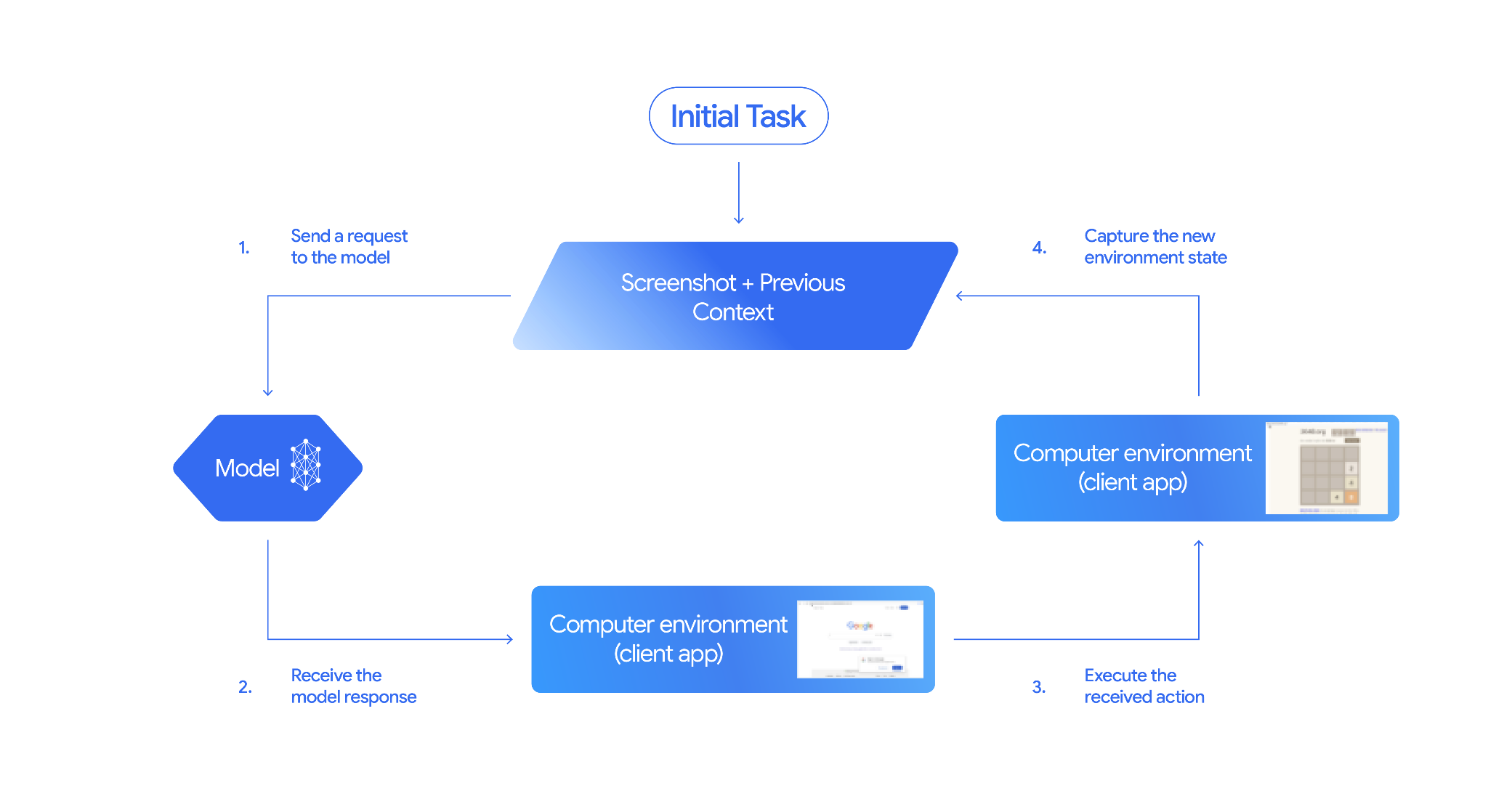6667## How to implement Computer Use6869Before building with the Computer Use tool you will need to set up the70following:7172- **Secure execution environment:** For safety reasons, you should run your Computer Use agent in a secure and controlled environment (e.g., a sandboxed virtual machine, a container, or a dedicated browser profile with limited permissions).73- **Client-side action handler:** You will need to implement client-side logic to execute the actions generated by the model and capture screenshots of the environment after each action.7475The examples in this section use a browser as the execution environment76and [Playwright](https://playwright.dev/) as the client-side action handler. To77run these samples you must install the necessary dependencies and initialize a78Playwright browser instance:7980### 0. Install Playwright8182 pip install google-genai playwright83 playwright install chromium8485### 0. Initialize Playwright browser instance8687 from playwright.sync_api import sync_playwright8889 # 1. Configure screen dimensions for the target environment90 SCREEN_WIDTH = 144091 SCREEN_HEIGHT = 9009293 # 2. Start the Playwright browser94 # In production, utilize a sandboxed environment.95 playwright = sync_playwright().start()96 # Set headless=False to see the actions performed on your screen97 browser = playwright.chromium.launch(headless=False)9899 # 3. Create a context and page with the specified dimensions100 context = browser.new_context(101 viewport={"width": SCREEN_WIDTH, "height": SCREEN_HEIGHT}102 )103 page = context.new_page()104105 # 4. Navigate to an initial page to start the task106 page.goto("https://www.google.com")107108 # The 'page', 'SCREEN_WIDTH', and 'SCREEN_HEIGHT' variables109 # will be used in the steps below.110111Sample code for extending to an Android112environment is included in the [Using custom user-defined113functions](https://ai.google.dev/gemini-api/docs/interactions/computer-use#custom-functions) section.114115### 1. Send a request to the model116117Add the Computer Use tool to your API request and send a prompt to the model118that includes the user's goal. You must use one of the Computer Use supported119models or you will get an error:120121- `gemini-2.5-computer-use-preview-10-2025`122- `gemini-3-flash-preview`123124You can also optionally add the following parameters:125126- **Excluded actions:** If there are any actions from the list of [Supported127 UI actions](https://ai.google.dev/gemini-api/docs/interactions/computer-use#supported-actions) that you don't want the model to take, specify these actions as `excluded_predefined_functions`.128- **User-defined functions:** In addition to the Computer Use tool, you may want to include custom user-defined functions.129130Note that there is no need to specify the display size when issuing a request;131the model predicts pixel coordinates scaled to the height and width of the132screen.133134### Python135136 from google import genai137138 client = genai.Client()139140 # Specify predefined functions to exclude (optional)141 excluded_functions = ["drag_and_drop"]142143 interaction = client.interactions.create(144 model='gemini-2.5-computer-use-preview-10-2025',145 input="Search for highly rated smart fridges with touchscreen, 2 doors, around 25 cu ft, priced below 4000 dollars on Google Shopping. Create a bulleted list of the 3 cheapest options in the format of name, description, price in an easy-to-read layout.",146 tools=[147 {148 "type": "computer_use",149 "environment": "browser",150 "excluded_predefined_functions": excluded_functions151 }152 ]153 )154155 print(interaction)156157For an example with custom functions, see [Using custom158user-defined functions](https://ai.google.dev/gemini-api/docs/interactions/computer-use#custom-functions).159160### 2. Receive the model response161162When the Computer Use tool is enabled, the model will respond with one or more163`function_call` steps if it determines UI actions are needed to complete the task.164Computer Use supports parallel function calling, meaning the model can return165multiple actions in a single turn.166167Here is an example model response.168169 {170 "steps": [171 {172 "type": "model_output",173 "content": [174 {175 "type": "text",176 "text": "I will type the search query into the search bar. The search bar is in the center of the page."177 }178 ]179 },180 {181 "type": "function_call",182 "name": "type_text_at",183 "arguments": {184 "x": 371,185 "y": 470,186 "text": "highly rated smart fridges with touchscreen, 2 doors, around 25 cu ft, priced below 4000 dollars on Google Shopping",187 "press_enter": true188 }189 }190 ]191 }192193### 3. Execute the received actions194195Your application code needs to parse the model response, execute the actions,196and collect the results.197198The following example code extracts function calls from the Computer Use model199response, and translates them into actions that can be executed with Playwright.200The model outputs normalized coordinates (0-999) regardless of the input image201dimensions, so part of the translation step is converting these normalized202coordinates back to actual pixel values.203204The recommended screen size for use205with the Computer Use model is (1440, 900). The model will work with any206resolution, though the quality of the results may be impacted.207208Note that this example only includes the implementation for the 3 most common209UI actions: `open_web_browser`, `click_at`, and `type_text_at`. For210production use cases, you will need to implement all other UI actions from the211[Supported actions](https://ai.google.dev/gemini-api/docs/interactions/computer-use#supported-actions) list unless you explicitly add them as212`excluded_predefined_functions`.213214### Python215216 from typing import Any, List, Tuple217 import time218219 def denormalize_x(x: int, screen_width: int) -> int:220 """Convert normalized x coordinate (0-1000) to actual pixel coordinate."""221 return int(x / 1000 * screen_width)222223 def denormalize_y(y: int, screen_height: int) -> int:224 """Convert normalized y coordinate (0-1000) to actual pixel coordinate."""225 return int(y / 1000 * screen_height)226227 def execute_function_calls(interaction, page, screen_width, screen_height):228 results = []229 function_calls = [230 step for step in interaction.steps if step.type == "function_call"231 ]232233 for function_call in function_calls:234 action_result = {}235 fname = function_call.name236 args = function_call.arguments237 print(f" -> Executing: {fname}")238239 try:240 if fname == "open_web_browser":241 pass # Already open242 elif fname == "click_at":243 actual_x = denormalize_x(args["x"], screen_width)244 actual_y = denormalize_y(args["y"], screen_height)245 page.mouse.click(actual_x, actual_y)246 elif fname == "type_text_at":247 actual_x = denormalize_x(args["x"], screen_width)248 actual_y = denormalize_y(args["y"], screen_height)249 text = args["text"]250 press_enter = args.get("press_enter", False)251252 page.mouse.click(actual_x, actual_y)253 # Simple clear (Command+A, Backspace for Mac)254 page.keyboard.press("Meta+A")255 page.keyboard.press("Backspace")256 page.keyboard.type(text)257 if press_enter:258 page.keyboard.press("Enter")259 else:260 print(f"Warning: Unimplemented or custom function {fname}")261262 # Wait for potential navigations/renders263 page.wait_for_load_state(timeout=5000)264 time.sleep(1)265266 except Exception as e:267 print(f"Error executing {fname}: {e}")268 action_result = {"error": str(e)}269270 results.append((fname, function_call.id, action_result))271272 return results273274### 4. Capture the new environment state275276After executing the actions, send the result of the function execution back to277the model so it can use this information to generate the next action. If278multiple actions (parallel calls) were executed, you must send a279`function_result` for each one in the subsequent user turn.280281### Python282283 import json284 import base64285286 def get_function_responses(page, results):287 screenshot_bytes = page.screenshot(type="png")288 current_url = page.url289 function_responses = []290 for name, call_id, result in results:291 function_responses.append({292 "type": "function_result",293 "name": name,294 "call_id": call_id,295 "result": [296 {297 "type": "text",298 "text": json.dumps({"url": current_url, **result})299 },300 {301 "type": "image",302 "data": base64.b64encode(screenshot_bytes).decode("utf-8"),303 "mime_type": "image/png"304 }305 ]306 })307 return function_responses308309## Build an agent loop310311To enable multi-step interactions, combine the four steps from the [How to312implement Computer Use](https://ai.google.dev/gemini-api/docs/interactions/computer-use#implement-computer-use) section into a loop.313Remember to manage the conversation history correctly by appending both model314responses and your function responses.315316To run this code sample you need to:317318- Install the [necessary Playwright319 dependencies](https://ai.google.dev/gemini-api/docs/interactions/computer-use#implement-computer-use).320- Define the helper functions from steps [(3) Execute the received321 actions](https://ai.google.dev/gemini-api/docs/interactions/computer-use#execute-actions) and [(4) Capture the new environment322 state](https://ai.google.dev/gemini-api/docs/interactions/computer-use#capture-state).323324### Python325326327 import time328 from typing import Any, List, Tuple329 from playwright.sync_api import sync_playwright330331 from google import genai332333 client = genai.Client()334335 # Constants for screen dimensions336 SCREEN_WIDTH = 1440337 SCREEN_HEIGHT = 900338339 # Setup Playwright340 print("Initializing browser...")341 playwright = sync_playwright().start()342 browser = playwright.chromium.launch(headless=False)343 context = browser.new_context(viewport={"width": SCREEN_WIDTH, "height": SCREEN_HEIGHT})344 page = context.new_page()345346 # Define helper functions. Copy/paste from steps 3 and 4347 # def denormalize_x(...)348 # def denormalize_y(...)349 # def execute_function_calls(...)350 # def get_function_responses(...)351352 try:353 # Go to initial page354 page.goto("https://ai.google.dev/gemini-api/docs")355356 # Take initial screenshot357 initial_screenshot = page.screenshot(type="png")358 USER_PROMPT = "Go to ai.google.dev/gemini-api/docs and search for pricing."359 print(f"Goal: {USER_PROMPT}")360361 # First interaction362 interaction = client.interactions.create(363 model='gemini-2.5-computer-use-preview-10-2025',364 input=[365 {"type": "text", "text": USER_PROMPT},366 {"type": "image", "data": base64.b64encode(initial_screenshot).decode("utf-8"), "mime_type": "image/png"}367 ],368 tools=[{369 "type": "computer_use",370 "environment": "browser"371 }]372 )373374 # Agent Loop375 turn_limit = 5376 for i in range(turn_limit):377 print(f"\n--- Turn {i+1} ---")378379 has_function_calls = any(380 step.type == "function_call"381 for step in interaction.steps382 )383 if not has_function_calls:384 text_response = " ".join([385 content_block.text for step in interaction.steps if step.type == "model_output"386 for content_block in step.content if content_block.type == "text"387 ])388 print("Agent finished:", text_response)389 break390391 print("Executing actions...")392 results = execute_function_calls(interaction, page, SCREEN_WIDTH, SCREEN_HEIGHT)393394 print("Capturing state...")395 function_responses = get_function_responses(page, results)396397 # Continue conversation with function responses398 interaction = client.interactions.create(399 model='gemini-2.5-computer-use-preview-10-2025',400 previous_interaction_id=interaction.id,401 input=function_responses,402 tools=[{403 "type": "computer_use",404 "environment": "browser"405 }]406 )407408 finally:409 # Cleanup410 print("\nClosing browser...")411 browser.close()412 playwright.stop()413414## Using custom user-defined functions415416You can optionally include custom user-defined functions in your request to417extend the functionality of the model. The following example adapts the Computer Use418model and tool for mobile use cases by including custom user-defined actions419like `open_app`, `long_press_at`, and `go_home`, while excluding420browser-specific actions. The model can intelligently call these custom421functions alongside standard UI actions to complete tasks in non-browser422environments.423424### Python425426 from typing import Optional, Dict, Any427428 from google import genai429430 client = genai.Client()431432 SYSTEM_PROMPT = """You are operating an Android phone. Today's date is October 15, 2023, so ignore any other date provided.433 * To provide an answer to the user, *do not use any tools* and output your answer on a separate line. IMPORTANT: Do not add any formatting or additional punctuation/text, just output the answer by itself after two empty lines.434 * Make sure you scroll down to see everything before deciding something isn't available.435 * You can open an app from anywhere. The icon doesn't have to currently be on screen.436 * Unless explicitly told otherwise, make sure to save any changes you make.437 * If text is cut off or incomplete, scroll or click into the element to get the full text before providing an answer.438 * IMPORTANT: Complete the given task EXACTLY as stated. DO NOT make any assumptions that completing a similar task is correct. If you can't find what you're looking for, SCROLL to find it.439 * If you want to edit some text, ONLY USE THE `type` tool. Do not use the onscreen keyboard.440 * Quick settings shouldn't be used to change settings. Use the Settings app instead.441 * The given task may already be completed. If so, there is no need to do anything.442 """443444 # Custom function definitions for mobile445 custom_functions = [446 {447 "type": "function",448 "name": "open_app",449 "description": "Opens an app by name.",450 "parameters": {451 "type": "object",452 "properties": {453 "app_name": {"type": "string", "description": "Name of the app to open"},454 "intent": {"type": "string", "description": "Optional deep-link or action"}455 },456 "required": ["app_name"]457 }458 },459 {460 "type": "function",461 "name": "long_press_at",462 "description": "Long-press at a specific screen coordinate.",463 "parameters": {464 "type": "object",465 "properties": {466 "x": {"type": "integer", "description": "X coordinate"},467 "y": {"type": "integer", "description": "Y coordinate"}468 },469 "required": ["x", "y"]470 }471 },472 {473 "type": "function",474 "name": "go_home",475 "description": "Navigates to the device home screen.",476 "parameters": {"type": "object", "properties": {}}477 }478 ]479480 # Exclude browser-specific functions481 excluded_functions = [482 "open_web_browser",483 "search",484 "navigate",485 "hover_at",486 "scroll_document",487 "go_forward",488 "key_combination",489 "drag_and_drop",490 ]491492 interaction = client.interactions.create(493 model='gemini-2.5-computer-use-preview-10-2025',494 system_instruction=SYSTEM_PROMPT,495 input="Open Chrome, then long-press at 200,400.",496 tools=[497 {498 "type": "computer_use",499 "environment": "browser",500 "excluded_predefined_functions": excluded_functions501 },502 *custom_functions503 ]504 )505506 print(interaction)507508## Supported UI actions509510The model can request the following UI actions using a511`function_call`. Your client-side code must implement the execution logic for512these actions. See the [reference513implementation](https://github.com/google/computer-use-preview) for514examples.515516| Command Name | Description | Arguments (in Function Call) | Example Function Call |517|---|---|---|---|518| **open_web_browser** | Opens the web browser. | None | `{"name": "open_web_browser", "arguments": {}}` |519| **wait_5_seconds** | Pauses execution for 5 seconds to allow dynamic content to load or animations to complete. | None | `{"name": "wait_5_seconds", "arguments": {}}` |520| **go_back** | Navigates to the previous page in the browser's history. | None | `{"name": "go_back", "arguments": {}}` |521| **go_forward** | Navigates to the next page in the browser's history. | None | `{"name": "go_forward", "arguments": {}}` |522| **search** | Navigates to the default search engine's homepage (e.g., Google). Useful for starting a new search task. | None | `{"name": "search", "arguments": {}}` |523| **navigate** | Navigates the browser directly to the specified URL. | `url`: str | `{"name": "navigate", "arguments": {"url": "https://www.wikipedia.org"}}` |524| **click_at** | Clicks at a specific coordinate on the webpage. The x and y values are based on a 1000x1000 grid and are scaled to the screen dimensions. | `y`: int (0-999), `x`: int (0-999) | `{"name": "click_at", "arguments": {"y": 300, "x": 500}}` |525| **hover_at** | Hovers the mouse at a specific coordinate on the webpage. Useful for revealing sub-menus. x and y are based on a 1000x1000 grid. | `y`: int (0-999) `x`: int (0-999) | `{"name": "hover_at", "arguments": {"y": 150, "x": 250}}` |526| **type_text_at** | Types text at a specific coordinate, defaults to clearing the field first and pressing ENTER after typing, but these can be disabled. x and y are based on a 1000x1000 grid. | `y`: int (0-999), `x`: int (0-999), `text`: str, `press_enter`: bool (Optional, default True), `clear_before_typing`: bool (Optional, default True) | `{"name": "type_text_at", "arguments": {"y": 250, "x": 400, "text": "search query", "press_enter": false}}` |527| **key_combination** | Press keyboard keys or combinations, such as "Control+C" or "Enter". Useful for triggering actions (like submitting a form with "Enter") or clipboard operations. | `keys`: str (e.g. 'enter', 'control+c'). | `{"name": "key_combination", "arguments": {"keys": "Control+A"}}` |528| **scroll_document** | Scrolls the entire webpage "up", "down", "left", or "right". | `direction`: str ("up", "down", "left", or "right") | `{"name": "scroll_document", "arguments": {"direction": "down"}}` |529| **scroll_at** | Scrolls a specific element or area at coordinate (x, y) in the specified direction by a certain magnitude. Coordinates and magnitude (default 800) are based on a 1000x1000 grid. | `y`: int (0-999), `x`: int (0-999), `direction`: str ("up", "down", "left", "right"), `magnitude`: int (0-999, Optional, default 800) | `{"name": "scroll_at", "arguments": {"y": 500, "x": 500, "direction": "down", "magnitude": 400}}` |530| **drag_and_drop** | Drags an element from a starting coordinate (x, y) and drops it at a destination coordinate (destination_x, destination_y). All coordinates are based on a 1000x1000 grid. | `y`: int (0-999), `x`: int (0-999), `destination_y`: int (0-999), `destination_x`: int (0-999) | `{"name": "drag_and_drop", "arguments": {"y": 100, "x": 100, "destination_y": 500, "destination_x": 500}}` |531532## Safety and security533534### Acknowledge safety decision535536Depending on the action, the model response might also include a537`safety_decision` from an internal safety system that checks the model's538proposed action.539540 {541 "steps": [542 {543 "type": "model_output",544 "content": [545 {546 "type": "text",547 "text": "I have evaluated step 2. It seems Google detected unusual traffic and is asking me to verify I'm not a robot. I need to click the 'I'm not a robot' checkbox located near the top left (y=98, x=95)."548 }549 ]550 },551 {552 "type": "function_call",553 "name": "click_at",554 "arguments": {555 "x": 60,556 "y": 100,557 "safety_decision": {558 "explanation": "I have encountered a CAPTCHA challenge that requires interaction. I need you to complete the challenge by clicking the 'I'm not a robot' checkbox and any subsequent verification steps.",559 "decision": "require_confirmation"560 }561 }562 }563 ]564 }565566If the `safety_decision` is `require_confirmation`, you must567ask the end user to confirm before proceeding with executing the action. Per the568[terms of service](https://ai.google.dev/gemini-api/terms), you are not allowed569to bypass requests for human confirmation.570571This code sample prompts the end-user for confirmation before executing the572action. If the user does not confirm the action, the loop terminates. If the573user confirms the action, the action is executed and the574`safety_acknowledgement` field is marked as `True`.575576### Python577578 import termcolor579580 def get_safety_confirmation(safety_decision):581 """Prompt user for confirmation when safety check is triggered."""582 termcolor.cprint("Safety service requires explicit confirmation!", color="red")583 print(safety_decision["explanation"])584585 decision = ""586 while decision.lower() not in ("y", "n", "ye", "yes", "no"):587 decision = input("Do you wish to proceed? [Y]es/[N]o\n")588589 if decision.lower() in ("n", "no"):590 return "TERMINATE"591 return "CONTINUE"592593 def execute_function_calls(interaction, page, screen_width, screen_height):594595 # ... Extract function calls from response ...596597 for function_call in function_calls:598 extra_fr_fields = {}599600 # Check for safety decision601 if 'safety_decision' in function_call.arguments:602 decision = get_safety_confirmation(function_call.arguments['safety_decision'])603 if decision == "TERMINATE":604 print("Terminating agent loop")605 break606 extra_fr_fields["safety_acknowledgement"] = True # Safety acknowledgement607608 # ... Execute function call and append to results ...609610If the user confirms, you must include the safety acknowledgement in611your `function_result`.612613 ```python614 function_responses.append({615 "type": "function_result",616 "name": name,617 "call_id": function_call.id,618 "result": [619 {620 "type": "text",621 "text": json.dumps({622 "url": current_url,623 "safety_acknowledgement": True,624 **extra_fr_fields625 })626 },627 {628 "type": "image",629 "data": base64.b64encode(screenshot_bytes).decode("utf-8"),630 "mime_type": "image/png"631 }632 ]633 })634 ```635636### Safety best practices637638Computer Use is a novel tool that presents new risks that developers should be639mindful of:640641- **Untrusted content \& scams:** As the model tries to achieve the user's goal, it may rely on untrustworthy sources of information and instructions from the screen. For example, if the user's goal is to purchase a Pixel phone and the model encounters a "Free-Pixel if you complete a survey" scam, there is some chance that the model will complete the survey.642- **Occasional unintended actions:** The model can misinterpret a user's goal or webpage content, causing it to take incorrect actions like clicking the wrong button or filling the wrong form. This can lead to failed tasks or data exfiltration.643- **Policy violations:** The API's capabilities could be directed, either intentionally or unintentionally, toward activities that violate Google's policies ([Gen AI Prohibited Use644 Policy](https://policies.google.com/terms/generative-ai/use-policy) and the [Gemini API Additional Terms of645 Service](https://ai.google.dev/gemini-api/terms). This includes actions that could interfere with a system's integrity, compromise security, bypass security measures, control medical devices, etc.646647To address these risks, you can implement the following safety measures and best648practices:6496501. **Human-in-the-Loop (HITL):**651652 - **Implement user confirmation:** When the safety response indicates `require_confirmation`, you must implement user confirmation before execution. See [Acknowledge safety decision](https://ai.google.dev/gemini-api/docs/interactions/computer-use#safety-decisions) for sample code.653 - **Provide custom safety instructions:** In addition to the built-in user654 confirmation checks, developers may optionally add a custom [system655 instruction](https://ai.google.dev/gemini-api/docs/text-generation#system-instructions)656 that enforces their own safety policies, either to block certain model657 actions or require user confirmation before the model takes certain658 high-stakes irreversible actions. Here is an example of a custom safety659 system instruction you may include when interacting with the model.660661 **Example safety instructions:**662663 Set your custom safety rules as a system instruction:664665 ## **RULE 1: Seek User Confirmation (USER_CONFIRMATION)**666667 This is your first and most important check. If the next required action falls668 into any of the following categories, you MUST stop immediately, and seek the669 user's explicit permission.670671 **Procedure for Seeking Confirmation:** * **For Consequential Actions:**672 Perform all preparatory steps (e.g., navigating, filling out forms, typing a673 message). You will ask for confirmation **AFTER** all necessary information is674 entered on the screen, but **BEFORE** you perform the final, irreversible action675 (e.g., before clicking "Send", "Submit", "Confirm Purchase", "Share"). * **For676 Prohibited Actions:** If the action is strictly forbidden (e.g., accepting legal677 terms, solving a CAPTCHA), you must first inform the user about the required678 action and ask for their confirmation to proceed.679680 **USER_CONFIRMATION Categories:**681682 * **Consent and Agreements:** You are FORBIDDEN from accepting, selecting, or683 agreeing to any of the following on the user's behalf. You must ask the684 user to confirm before performing these actions.685 * Terms of Service686 * Privacy Policies687 * Cookie consent banners688 * End User License Agreements (EULAs)689 * Any other legally significant contracts or agreements.690 * **Robot Detection:** You MUST NEVER attempt to solve or bypass the691 following. You must ask the user to confirm before performing these actions.692 * CAPTCHAs (of any kind)693 * Any other anti-robot or human-verification mechanisms, even if you are694 capable.695 * **Financial Transactions:**696 * Completing any purchase.697 * Managing or moving money (e.g., transfers, payments).698 * Purchasing regulated goods or participating in gambling.699 * **Sending Communications:**700 * Sending emails.701 * Sending messages on any platform (e.g., social media, chat apps).702 * Posting content on social media or forums.703 * **Accessing or Modifying Sensitive Information:**704 * Health, financial, or government records (e.g., medical history, tax705 forms, passport status).706 * Revealing or modifying sensitive personal identifiers (e.g., SSN, bank707 account number, credit card number).708 * **User Data Management:**709 * Accessing, downloading, or saving files from the web.710 * Sharing or sending files/data to any third party.711 * Transferring user data between systems.712 * **Browser Data Usage:**713 * Accessing or managing Chrome browsing history, bookmarks, autofill data,714 or saved passwords.715 * **Security and Identity:**716 * Logging into any user account.717 * Any action that involves misrepresentation or impersonation (e.g.,718 creating a fan account, posting as someone else).719 * **Insurmountable Obstacles:** If you are technically unable to interact with720 a user interface element or are stuck in a loop you cannot resolve, ask the721 user to take over.722 ---723724 ## **RULE 2: Default Behavior (ACTUATE)**725726 If an action does **NOT** fall under the conditions for `USER_CONFIRMATION`,727 your default behavior is to **Actuate**.728729 **Actuation Means:** You MUST proactively perform all necessary steps to move730 the user's request forward. Continue to actuate until you either complete the731 non-consequential task or encounter a condition defined in Rule 1.732733 * **Example 1:** If asked to send money, you will navigate to the payment734 portal, enter the recipient's details, and enter the amount. You will then735 **STOP** as per Rule 1 and ask for confirmation before clicking the final736 "Send" button.737 * **Example 2:** If asked to post a message, you will navigate to the site,738 open the post composition window, and write the full message. You will then739 **STOP** as per Rule 1 and ask for confirmation before clicking the final740 "Post" button.741742 After the user has confirmed, remember to get the user's latest screen743 before continuing to perform actions.744745 # Final Response Guidelines:746 Write final response to the user in the following cases:747 - User confirmation748 - When the task is complete or you have enough information to respond to the user7497502. **Secure execution environment:** Run your agent in a secure, sandboxed751 environment to limit its potential impact (e.g., A sandboxed virtual machine752 (VM), a container (e.g., Docker), or a dedicated browser profile with limited753 permissions).7547553. **Input sanitization:** Sanitize all user-generated text in prompts to756 mitigate the risk of unintended instructions or prompt injection. This is a757 helpful layer of security, but not a replacement for a secure execution758 environment.7597604. **Content guardrails:** Use guardrails and [content safety761 APIs](https://ai.google.dev/gemma/docs/shieldgemma) to evaluate user inputs,762 tool input and output, an agent's response for appropriateness, prompt763 injection, and jailbreak detection.7647655. **Allowlists and blocklists:** Implement filtering mechanisms to control766 where the model can navigate and what it can do. A blocklist of prohibited767 websites is a good starting point, while a more restrictive allowlist is768 even more secure.7697706. **Observability and logging:** Maintain detailed logs for debugging,771 auditing, and incident response. Your client should log prompts,772 screenshots, model-suggested actions (function_call), safety responses, and773 all actions ultimately executed by the client.7747757. **Environment management:** Ensure the GUI environment is consistent.776 Unexpected pop-ups, notifications, or changes in layout can confuse the777 model. Start from a known, clean state for each new task if possible.778779## Model versions780781Note that `gemini-3-flash-preview` has built-in782support for Computer Use; you do not need a separate model to access the tool.783784| Property | Description |785|---|---|786| Model code | **Gemini API** `gemini-2.5-computer-use-preview-10-2025` |787| Supported data types | **Input** Image, text **Output** Text |788| Token limits^[\[\*\]](https://ai.google.dev/gemini-api/docs/tokens)^ | **Input token limit** 128,000 **Output token limit** 64,000 |789| Versions | Read the [model version patterns](https://ai.google.dev/gemini-api/docs/models/gemini#model-versions) for more details. - Preview: `gemini-2.5-computer-use-preview-10-2025` |790| Latest update | October 2025 |791792## What's next793794- Experiment with Computer Use in the [Browserbase demo795 environment](http://gemini.browserbase.com).796- Check out the [Reference797 implementation](https://github.com/google/computer-use-preview) for example code.798- Learn about other Gemini API tools:799 - [Function calling](https://ai.google.dev/gemini-api/docs/interactions/function-calling)800 - [Grounding with Google Search](https://ai.google.dev/gemini-api/docs/interactions/google-search)