Repository Public
1The [AI SDK by Vercel](https://ai-sdk.dev) is a powerful open-source library for2building AI-powered applications, user interfaces, and agents in TypeScript.34This guide will walk you through building a Node.js application with TypeScript5that uses the AI SDK to connect with the Gemini API via the [Google Generative AI Provider](https://ai-sdk.dev/providers/ai-sdk-providers/google-generative-ai) and perform automated market trend analysis. The final6application will:781. Use Gemini with Google Search to research current market trends.92. Extract structured data from the research to generate charts.103. Combine the research and charts into a professional HTML report and save it as a PDF.1112## Prerequisites1314To complete this guide, you'll need:1516- A Gemini API key. You can create one for free in [Google AI Studio](https://aistudio.google.com/apikey).17- [Node.js](https://nodejs.org/en/download) version 18 or later.18- A package manager, such as `npm`, `pnpm`, or `yarn`.1920> [!NOTE]21> **Note:** While this guide focuses on a Node.js environment, the AI SDK is also fully compatible with browser-based frameworks like [Next.js](https://nextjs.org/).2223## Set up your application2425First, create a new directory for your project and initialize it.2627### npm2829 mkdir market-trend-app30 cd market-trend-app31 npm init -y3233### pnpm3435 mkdir market-trend-app36 cd market-trend-app37 pnpm init3839### yarn4041 mkdir market-trend-app42 cd market-trend-app43 yarn init -y4445### Install dependencies4647Next, install the AI SDK, the Google Generative AI provider, and other48necessary dependencies.4950### npm5152 npm install ai @ai-sdk/google zod53 npm install -D @types/node tsx typescript && npx tsc --init5455To prevent a TypeScript compiler error, comment out the following line in56the generated `tsconfig.json`:5758 //"verbatimModuleSyntax": true,5960### pnpm6162 pnpm add ai @ai-sdk/google zod63 pnpm add -D @types/node tsx typescript6465### yarn6667 yarn add ai @ai-sdk/google zod68 yarn add -D @types/node tsx typescript && yarn tsc --init6970To prevent a TypeScript compiler error, comment out the following line in71the generated `tsconfig.json`:7273 //"verbatimModuleSyntax": true,7475This application will also use the third-party packages [Puppeteer](https://pptr.dev/)76and [Chart.js](https://www.chartjs.org) for rendering charts and77creating a PDF:7879### npm8081 npm install puppeteer chart.js82 npm install -D @types/chart.js8384### pnpm8586 pnpm add puppeteer chart.js87 pnpm add -D @types/chart.js8889### yarn9091 yarn add puppeteer chart.js92 yarn add -D @types/chart.js9394The `puppeteer` package requires running a script to download the Chromium95browser. Your package manager may ask for approval, so ensure you approve the96script when prompted.9798### Configure your API key99100Set the `GOOGLE_GENERATIVE_AI_API_KEY` environment variable with your Gemini API101key. The Google Generative AI Provider automatically looks for your API key in102this environment variable.103104### MacOS/Linux105106 export GOOGLE_GENERATIVE_AI_API_KEY="YOUR_API_KEY_HERE"107108### Powershell109110 setx GOOGLE_GENERATIVE_AI_API_KEY "YOUR_API_KEY_HERE"111112## Create your application113114Now, let's create the main file for our application. Create a new file named115`main.ts` in your project directory. You'll build up the logic in this file116step-by-step.117118For a quick test to ensure everything is set up correctly, add the following119code to `main.ts`. This basic example uses `generateText` to get a simple120response from Gemini.121122 import { google } from "@ai-sdk/google";123 import { generateText } from "ai";124125 async function main() {126 const { text } = await generateText({127 model: google("gemini-3.8-flash"),128 prompt: 'What is plant-based milk?',129 });130131 console.log(text);132 }133134 main().catch(console.error);135136Before adding more complexity, run this script to verify that your environment137is configured correctly. Run the following command in your terminal:138139### npm140141 npx tsc && node main.js142143### pnpm144145 pnpm tsx main.ts146147### yarn148149 yarn tsc && node main.js150151If everything is set up correctly, you'll see Gemini's response printed to the152console.153154## Perform market research with Google Search155156To get up-to-date information, you can enable the157[Google Search](https://ai.google.dev/gemini-api/docs/google-search) tool for Gemini. When this tool158is active, the model can search the web to answer the prompt and will return159the sources it used.160161Replace the content of `main.ts` with the following code to perform the first162step of our analysis.163164 import { google } from "@ai-sdk/google";165 import { generateText } from "ai";166167 async function main() {168 // Step 1: Search market trends169 const { text: marketTrends, sources } = await generateText({170 model: google("gemini-3.8-flash"),171 tools: {172 google_search: google.tools.googleSearch({}),173 },174 prompt: `Search the web for market trends for plant-based milk in North America for 2024-2025.175 I need to know the market size, key players and their market share, and primary consumer drivers.176 `,177 });178179 console.log("Market trends found:\n", marketTrends);180 // To see the sources, uncomment the following line:181 // console.log("Sources:\n", sources);182 }183184 main().catch(console.error);185186## Extract chart data187188Next, let's process the research text to extract structured data suitable for189charts. Use the AI SDK's `generateObject` function along with a `zod`190schema to define the exact data structure.191192Also create a helper function to convert this structured data into a193configuration that `Chart.js` can understand.194195Add the following code to `main.ts`. Note the new imports and the added "Step 2".196197 import { google } from "@ai-sdk/google";198 import { generateText, generateObject } from "ai";199 import { z } from "zod/v4";200 import { ChartConfiguration } from "chart.js";201202 // Helper function to create Chart.js configurations203 function createChartConfig({labels, data, label, type, colors,}: {204 labels: string[];205 data: number[];206 label: string;207 type: "bar" | "line";208 colors: string[];209 }): ChartConfiguration {210 return {211 type: type,212 data: {213 labels: labels,214 datasets: [215 {216 label: label,217 data: data,218 borderWidth: 1,219 ...(type === "bar" && { backgroundColor: colors }),220 ...(type === "line" && colors.length > 0 && { borderColor: colors[0] }),221 },222 ],223 },224 options: {225 animation: { duration: 0 }, // Disable animations for static PDF rendering226 },227 };228 }229230 async function main() {231 // Step 1: Search market trends232 const { text: marketTrends, sources } = await generateText({233 model: google("gemini-3.8-flash"),234 tools: {235 google_search: google.tools.googleSearch({}),236 },237 prompt: `Search the web for market trends for plant-based milk in North America for 2024-2025.238 I need to know the market size, key players and their market share, and primary consumer drivers.239 `,240 });241242 console.log("Market trends found.");243244 // Step 2: Extract chart data245 const { object: chartData } = await generateObject({246 model: google("gemini-3.8-flash"),247 schema: z.object({248 chartConfigurations: z249 .array(250 z.object({251 type: z.enum(["bar", "line"]).describe('The type of chart to generate. Either "bar" or "line"',),252 labels: z.array(z.string()).describe("A list of chart labels"),253 data: z.array(z.number()).describe("A list of the chart data"),254 label: z.string().describe("A label for the chart"),255 colors: z.array(z.string()).describe('A list of colors to use for the chart, e.g. "rgba(255, 99, 132, 0.8)"',),256 }),257 )258 .describe("A list of chart configurations"),259 }),260 prompt: `Given the following market trends text, come up with a list of 1-3 meaningful bar or line charts261 and generate chart data.262 263 Market Trends:264 ${marketTrends}265 `,266 });267268 const chartConfigs = chartData.chartConfigurations.map(createChartConfig);269270 console.log("Chart configurations generated.");271 }272273 main().catch(console.error);274275## Generate the final report276277In the final step, instruct Gemini to act as an expert report writer.278Provide it with the market research, the chart configurations, and a clear279set of instructions for building an HTML report. Then, use280[Puppeteer](https://pptr.dev/) to render this HTML and save it as a PDF.281282Add the final `puppeteer` import and "Step 3" to your `main.ts` file.283284 // ... (imports from previous step)285 import puppeteer from "puppeteer";286287 // ... (createChartConfig helper function from previous step)288289 async function main() {290 // ... (Step 1 and 2 from previous step)291292 // Step 3: Generate the final HTML report and save it as a PDF293 const { text: htmlReport } = await generateText({294 model: google("gemini-3.8-flash"),295 prompt: `You are an expert financial analyst and report writer.296 Your task is to generate a comprehensive market analysis report in HTML format.297298 **Instructions:**299 1. Write a full HTML document.300 2. Use the provided "Market Trends" text to write the main body of the report. Structure it with clear headings and paragraphs.301 3. Incorporate the provided "Chart Configurations" to visualize the data. For each chart, you MUST create a unique <canvas> element and a corresponding <script> block to render it using Chart.js.302 4. Reference the "Sources" at the end of the report.303 5. Do not include any placeholder data; use only the information provided.304 6. Return only the raw HTML code.305306 **Chart Rendering Snippet:**307 Include this script in the head of the HTML: <script src="https://cdn.jsdelivr.net/npm/chart.js"></script>308 For each chart, use a structure like below, ensuring the canvas 'id' is unique for each chart, and apply the correspinding config:309310 ---311 <div style="width: 800px; height: 600px;">312 <canvas id="chart1"></canvas>313 </div>314 <script>315 new Chart(document.getElementById('chart1'), config);316 </script>317 ---318 (For the second chart, use 'chart2' and the corresponding config, and so on.)319320 **Data:**321 - Market Trends: ${marketTrends}322 - Chart Configurations: ${JSON.stringify(chartConfigs)}323 - Sources: ${JSON.stringify(sources)}324 `,325 });326327 // LLMs may wrap the HTML in a markdown code block, so strip it.328 const finalHtml = htmlReport.replace(/^```html\n/, "").replace(/\n```$/, "");329330 const browser = await puppeteer.launch();331 const page = await browser.newPage();332 await page.setContent(finalHtml);333 await page.pdf({ path: "report.pdf", format: "A4" });334 await browser.close();335336 console.log("\nReport generated successfully: report.pdf");337 }338339 main().catch(console.error);340341## Run your application342343You are now ready to run the application. Execute the following command in344your terminal:345346### npm347348 npx tsc && node main.js349350### pnpm351352 pnpm tsx main.ts353354### yarn355356 yarn tsc && node main.js357358You will see logging in your terminal as the script executes each step.359Once complete, a `report.pdf` file containing your market analysis will be360created in your project directory.361362Below, you'll see the first two pages of an example PDF report:363364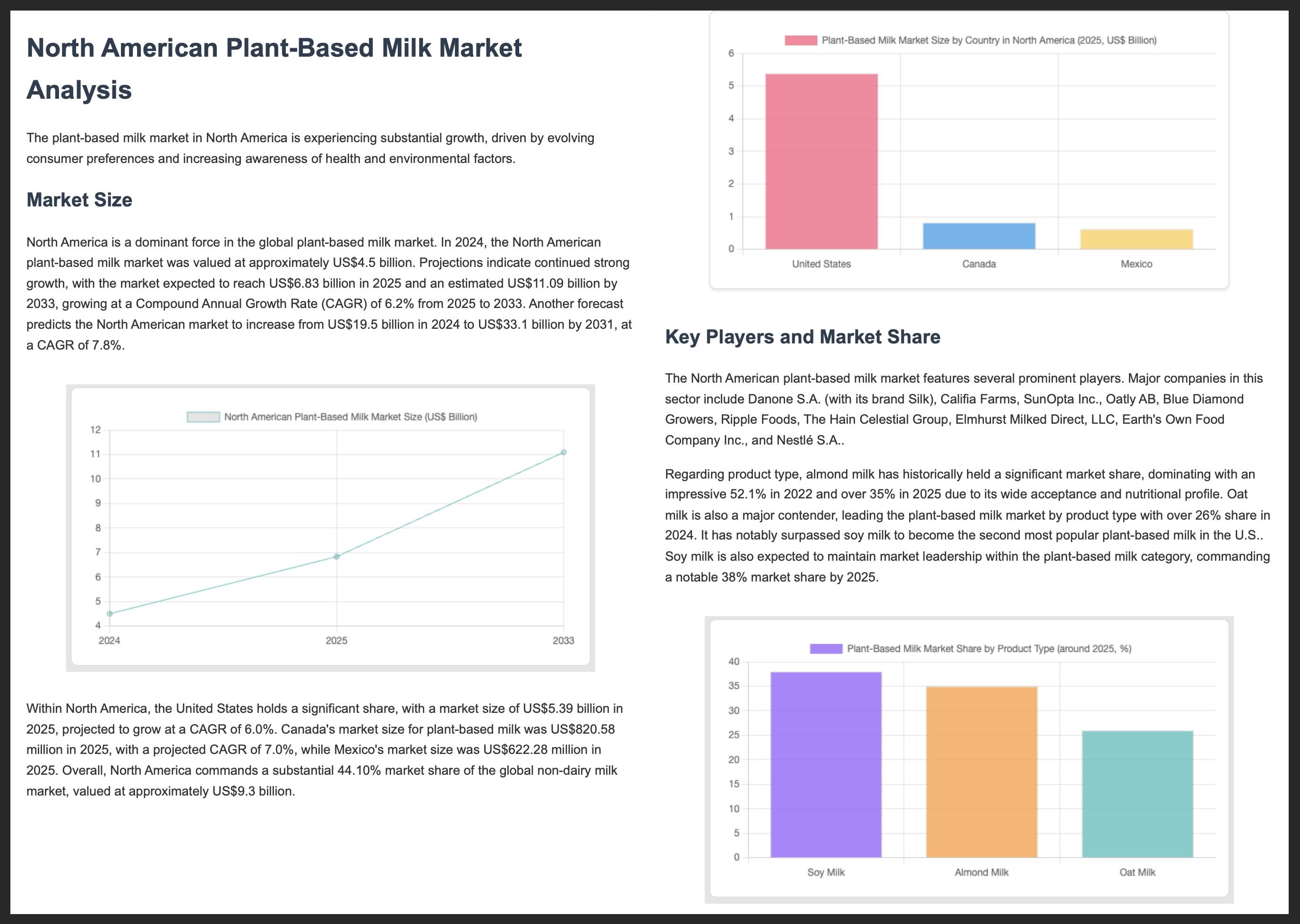365366## Further resources367368For more information about building with Gemini and the AI SDK,369explore these resources:370371- [AI SDK docs](https://ai-sdk.dev/docs)372- [AI SDK Google Generative AI docs](https://ai-sdk.dev/providers/ai-sdk-providers/google-generative-ai)373- [AI SDK cookbook: Get Started with Gemini](https://ai-sdk.dev/cookbook/guides/gemini)