The Live API enables low-latency, real-time voice and video interactions with Gemini. It processes continuous streams of audio, video, or text to deliver immediate, human-like spoken responses, creating a natural conversational experience for your users.
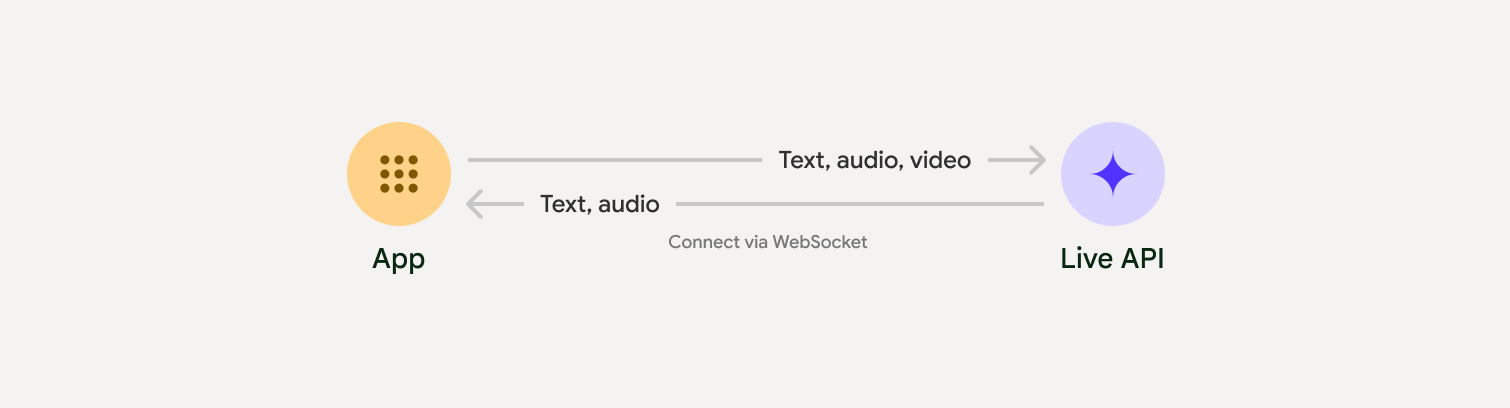
Live API offers a comprehensive set of features such asVoice Activity Detection,tool use and function calling,session management(for managing long running conversations) andephemeral tokens(for secure client-sided authentication).
This page gets you up and running with examples and basic code samples.
Try the Live API in Google AI Studiomic
Choose an implementation approach
When integrating with Live API, you'll need to choose one of the following implementation approaches:
- Server-to-server : Your backend connects to the Live API usingWebSockets. Typically, your client sends stream data (audio, video, text) to your server, which then forwards it to the Live API.
- Client-to-server : Your frontend code connects directly to the Live API usingWebSocketsto stream data, bypassing your backend.
Note: Client-to-server generally offers better performance for streaming audio and video, since it bypasses the need to send the stream to your backend first. It's also easier to set up since you don't need to implement a proxy that sends data from your client to your server and then your server to the API. However, for production environments, in order to mitigate security risks, we recommend usingephemeral tokensinstead of standard API keys.
Partner integrations
To streamline the development of real-time audio and video apps, you can use a third-party integration that supports the Gemini Live API over WebRTC or WebSockets.
Pipecat by Daily
Create a real-time AI chatbot using Gemini Live and Pipecat.LiveKit
Use the Gemini Live API with LiveKit Agents.Fishjam by Software Mansion
Create live video and audio streaming applications with Fishjam.Agent Development Kit (ADK)
Implement the Live API with Agent Development Kit (ADK).Vision Agents by Stream
Build real-time voice and video AI applications with Vision Agents.Voximplant
Connect inbound and outbound calls to Live API with Voximplant.
Get started
Microphone streamAudio file stream
This server-side examplestreams audio from the microphone and plays the returned audio. For complete end-to-end examples including a client application, seeExample applications.
The input audio format should be in 16-bit PCM, 16kHz, mono format, and the received audio uses a sample rate of 24kHz.
Python
Install helpers for audio streaming. Additional system-level dependencies (e.g.portaudio) might be required. Refer to thePyAudio docsfor detailed installation steps.
pip install pyaudio
Note: Use headphones. This script uses the system default audio input and output, which often won't include echo cancellation. To prevent the model from interrupting itself, use headphones.
import asyncio
from google import genai
import pyaudio

client = genai.Client()

# --- pyaudio config ---
FORMAT = pyaudio.paInt16
CHANNELS = 1
SEND_SAMPLE_RATE = 16000
RECEIVE_SAMPLE_RATE = 24000
CHUNK_SIZE = 1024

pya = pyaudio.PyAudio()

# --- Live API config ---
MODEL = "gemini-2.5-flash-native-audio-preview-12-2025"
CONFIG = {
    "response_modalities": ["AUDIO"],
    "system_instruction": "You are a helpful and friendly AI assistant.",
}

audio_queue_output = asyncio.Queue()
audio_queue_mic = asyncio.Queue(maxsize=5)
audio_stream = None

async def listen_audio():
    """Listens for audio and puts it into the mic audio queue."""
    global audio_stream
    mic_info = pya.get_default_input_device_info()
    audio_stream = await asyncio.to_thread(
        pya.open,
        format=FORMAT,
        channels=CHANNELS,
        rate=SEND_SAMPLE_RATE,
        input=True,
        input_device_index=mic_info["index"],
        frames_per_buffer=CHUNK_SIZE,
    )
    kwargs = {"exception_on_overflow": False} if __debug__ else {}
    while True:
        data = await asyncio.to_thread(audio_stream.read, CHUNK_SIZE, **kwargs)
        await audio_queue_mic.put({"data": data, "mime_type": "audio/pcm"})

async def send_realtime(session):
    """Sends audio from the mic audio queue to the GenAI session."""
    while True:
        msg = await audio_queue_mic.get()
        await session.send_realtime_input(audio=msg)

async def receive_audio(session):
    """Receives responses from GenAI and puts audio data into the speaker audio queue."""
    while True:
        turn = session.receive()
        async for response in turn:
            if (response.server_content and response.server_content.model_turn):
                for part in response.server_content.model_turn.parts:
                    if part.inline_data and isinstance(part.inline_data.data, bytes):
                        audio_queue_output.put_nowait(part.inline_data.data)

        # Empty the queue on interruption to stop playback
        while not audio_queue_output.empty():
            audio_queue_output.get_nowait()

async def play_audio():
    """Plays audio from the speaker audio queue."""
    stream = await asyncio.to_thread(
        pya.open,
        format=FORMAT,
        channels=CHANNELS,
        rate=RECEIVE_SAMPLE_RATE,
        output=True,
    )
    while True:
        bytestream = await audio_queue_output.get()
        await asyncio.to_thread(stream.write, bytestream)

async def run():
    """Main function to run the audio loop."""
    try:
        async with client.aio.live.connect(
            model=MODEL, config=CONFIG
        ) as live_session:
            print("Connected to Gemini. Start speaking!")
            async with asyncio.TaskGroup() as tg:
                tg.create_task(send_realtime(live_session))
                tg.create_task(listen_audio())
                tg.create_task(receive_audio(live_session))
                tg.create_task(play_audio())
    except asyncio.CancelledError:
        pass
    finally:
        if audio_stream:
            audio_stream.close()
        pya.terminate()
        print("\nConnection closed.")

if __name__ == "__main__":
    try:
        asyncio.run(run())
    except KeyboardInterrupt:
        print("Interrupted by user.")
JavaScript
Install helpers for audio streaming. Additional system-level dependencies might be required (soxfor Mac/Windows orALSAfor Linux). Refer to thespeakerandmicdocs for detailed installation steps.
npm install mic speaker
Note: Use headphones. This script uses the system default audio input and output, which often won't include echo cancellation. To prevent the model from interrupting itself, use headphones.
import { GoogleGenAI, Modality } from '@google/genai';
import mic from 'mic';
import Speaker from 'speaker';

const ai = new GoogleGenAI({});
// WARNING: Do not use API keys in client-side (browser based) applications
// Consider using Ephemeral Tokens instead
// More information at: https://ai.google.dev/gemini-api/docs/ephemeral-tokens

// --- Live API config ---
const model = 'gemini-2.5-flash-native-audio-preview-12-2025';
const config = {
  responseModalities: [Modality.AUDIO],
  systemInstruction: "You are a helpful and friendly AI assistant.",
};

async function live() {
  const responseQueue = [];
  const audioQueue = [];
  let speaker;

  async function waitMessage() {
    while (responseQueue.length === 0) {
      await new Promise((resolve) => setImmediate(resolve));
    }
    return responseQueue.shift();
  }

  function createSpeaker() {
    if (speaker) {
      process.stdin.unpipe(speaker);
      speaker.end();
    }
    speaker = new Speaker({
      channels: 1,
      bitDepth: 16,
      sampleRate: 24000,
    });
    speaker.on('error', (err) => console.error('Speaker error:', err));
    process.stdin.pipe(speaker);
  }

  async function messageLoop() {
    // Puts incoming messages in the audio queue.
    while (true) {
      const message = await waitMessage();
      if (message.serverContent && message.serverContent.interrupted) {
        // Empty the queue on interruption to stop playback
        audioQueue.length = 0;
        continue;
      }
      if (message.serverContent && message.serverContent.modelTurn && message.serverContent.modelTurn.parts) {
        for (const part of message.serverContent.modelTurn.parts) {
          if (part.inlineData && part.inlineData.data) {
            audioQueue.push(Buffer.from(part.inlineData.data, 'base64'));
          }
        }
      }
    }
  }

  async function playbackLoop() {
    // Plays audio from the audio queue.
    while (true) {
      if (audioQueue.length === 0) {
        if (speaker) {
          // Destroy speaker if no more audio to avoid warnings from speaker library
          process.stdin.unpipe(speaker);
          speaker.end();
          speaker = null;
        }
        await new Promise((resolve) => setImmediate(resolve));
      } else {
        if (!speaker) createSpeaker();
        const chunk = audioQueue.shift();
        await new Promise((resolve) => {
          speaker.write(chunk, () => resolve());
        });
      }
    }
  }

  // Start loops
  messageLoop();
  playbackLoop();

  // Connect to Gemini Live API
  const session = await ai.live.connect({
    model: model,
    config: config,
    callbacks: {
      onopen: () => console.log('Connected to Gemini Live API'),
      onmessage: (message) => responseQueue.push(message),
      onerror: (e) => console.error('Error:', e.message),
      onclose: (e) => console.log('Closed:', e.reason),
    },
  });

  // Setup Microphone for input
  const micInstance = mic({
    rate: '16000',
    bitwidth: '16',
    channels: '1',
  });
  const micInputStream = micInstance.getAudioStream();

  micInputStream.on('data', (data) => {
    // API expects base64 encoded PCM data
    session.sendRealtimeInput({
      audio: {
        data: data.toString('base64'),
        mimeType: "audio/pcm;rate=16000"
      }
    });
  });

  micInputStream.on('error', (err) => {
    console.error('Microphone error:', err);
  });

  micInstance.start();
  console.log('Microphone started. Speak now...');
}

live().catch(console.error);
Example applications
Check out the following example applications that illustrate how to use Live API for end-to-end use cases:
- Live audio starter appon AI Studio, using JavaScript libraries to connect to Live API and stream bidirectional audio through your microphone and speakers.
- See thePartner integrationsfor additional examples and getting started guides.
What's next
- Read the full Live APICapabilitiesguide for key capabilities and configurations; including Voice Activity Detection and native audio features.
- Read theTool useguide to learn how to integrate Live API with tools and function calling.
- Read theSession managementguide for managing long running conversations.
- Read theEphemeral tokensguide for secure authentication inclient-to-serverapplications.
- For more information about the underlying WebSockets API, see theWebSockets API reference.